You shipped a “clean AI-generated dashboard” in 30 seconds.
Then spent 3 days fixing it.
Not because your team is slow but because the output was structurally useless.
This is where most AI design conversations fall apart. Everyone talks about speed. No one talks about what happens after generation when the code doesn’t match your system, the flow breaks at step three, and engineering quietly starts rewriting everything.
The problem isn’t the tools.
It’s the workflow you’re forcing them into.
The Efficiency Paradox: Why AI Design Tools Create Massive Technical Debt
AI makes it ridiculously easy to generate UI.
That’s the problem.
You’re optimizing for local speed, not system integrity.
What actually happens:
- AI generates screens instantly
- Code looks “fine” at a glance
- Underneath → duplicated helpers, hardcoded styles, broken tokens
- Engineering spends days cleaning it up
This is the Efficiency Paradox:
Faster generation → slower delivery
You didn’t save time. You just moved the complexity downstream.
What’s actually broken
Most AI tools:
- Optimize for visual probability, not architecture
- Ignore your design tokens and components
- Invent ghost documentation (code that works but isn’t connected to anything real)
So instead of accelerating your system, you’re injecting technical debt at scale.
Context Amnesia: How to Stop AI from Breaking Multi-Screen User Flows
You generate Screen 1 → looks great. Screen 2 → typography changes. Screen 3 → navigation disappears.
That’s not a bug. That’s Context Amnesia.
AI doesn’t remember your system unless you force it to.
Why this happens
- No persistent state awareness
- Limited context windows
- Each prompt treated as a fresh guess
Result:
- Broken cognitive consistency
- Frankenstein flows
- Hours of manual stitching in Figma
Why Strict UI Consistency Always Beats Creativity in B2B SaaS
This is where most teams get it wrong.
They want “creative AI.”
Bad idea.
In SaaS:
- Users don’t want surprises
- They want predictability
- They want flows that behave exactly as expected
So your job isn’t to make AI more creative.
It’s to make it more constrained.
If you’re not enforcing rules, you’re not designing, you’re gambling.
If you haven’t already, this is where most teams benefit from shifting toward [flow-based design vs static screens] thinking. Because screens don’t matter, flows do.
The Sandwich Method: A Production-Ready AI Workflow for Scaling Teams
If you’re letting AI run unsupervised, you’re doing it wrong.
The only workflow that actually works:
Human Intent → AI Generation → Human Refinement
No exceptions.
Step 1: Constraint Injection (Top Bun)
Before prompting anything:
- Define design tokens
- Lock components
- Set failure states
- Specify user intent
Use structured prompts like:
- Intent (what must happen)
- Guardrails (what must NOT change)
- Narrative (how attention flows)
- Reference (source of truth)
- Evaluation (what success means)
No constraints = useless output.
Step 2: Logic First, UI Second
Stop prompting: “Design a dashboard”
Start with:
- State machines
- Flow transitions
- Edge cases
- Permission logic
If you skip this: You get Zombie Screens interfaces that look alive but collapse in production.
Step 3: Component Assembly (Not Pixel Generation)
You should never let AI “draw.”
Force it to:
- Use existing components
- Respect auto-layout
- Follow token rules
This is the difference between:
- A pretty mockup
- A production-ready system
Step 4: Sectional Iteration (Prevent Drift)
When fixing something:
- Don’t regenerate the whole screen
- Edit specific zones only
This avoids:
- Layout resets
- Token drift
- Context collapse
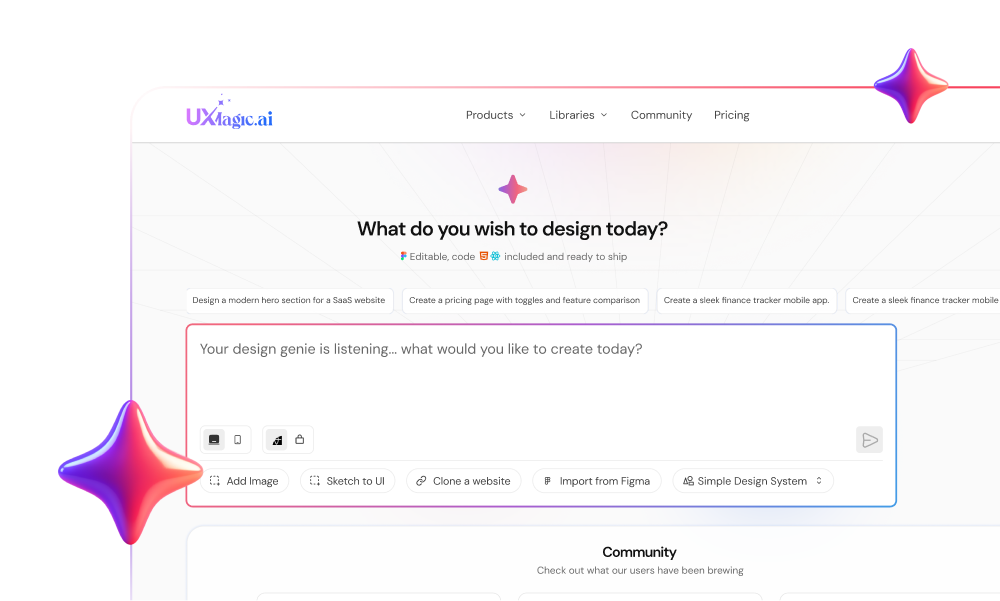
This is also where tools like UXMagic’s Flow Mode actually matter it locks structural anchors, so AI can’t randomly redesign your layout mid-flow.
Step 5: Adversarial Review (Bottom Bun)
Never trust AI output.
Force it to break itself:
- Identify edge cases
- Test error states
- Check accessibility
- Validate logic gaps
Then fix what it exposes.
This step alone eliminates most production failures.
Building a Prompt-to-Production Pipeline That Engineers Actually Trust
If your engineers don’t trust AI output, your workflow is broken.
Fixing this comes down to one thing:
Connect Design to Code Properly
Use Model Context Protocol (MCP) to:
- Expose real component structures
- Share actual design tokens
- Maintain layout constraints
Instead of guessing from images, AI reads:
- Component hierarchy
- Variables
- Auto-layout rules
So instead of generating fake code, it maps to real systems.
What this changes
Before:
- Hardcoded hex values
- Duplicate components
- Manual cleanup sprints
After:
- Token-based styling
- Real component references
- Clean handoff
This is how you move from:
“AI-generated UI” to “AI-assisted architecture”
If you're dealing with scaling systems, this ties directly into [managing complex design systems with AI] because consistency is no longer optional at scale.
Where UXMagic Fits (Without the Hype)
Most tools try to generate UI.
UXMagic enforces structure.
- Flow Mode → prevents context amnesia
- Component assembly → eliminates token drift
- Sectional editing → avoids full layout resets
It’s not trying to be creative.
It’s trying to make sure your AI output doesn’t break your product.
Which, honestly, is the real problem.
AI didn’t break your workflow.
It exposed it.
If your process can’t handle speed, more speed just creates bigger messes.
The teams that win won’t be the ones generating the most screens.
They’ll be the ones generating the least broken systems.
Stop generating UI that your engineers have to rebuild.
Start using AI as a system, not a shortcut.