You already know what your database looks like.
You know what your API returns. You know what your users need to do first.
Then you open a design tool and everything slows down.
The AI gives you a beautiful dashboard that collapses the moment real data touches it. Your sidebar shifts between screens. Your buttons change color randomly. Your developer calls the layout “uncodeable.”
This isn’t a design problem. It’s a workflow problem.
Most AI UI tools generate pixels. Founders need systems.
Why Pure Text-to-Image AI Fails in SaaS Product Design
If your AI tool generates isolated screens, it’s not helping you ship software. It’s helping you make screenshots.
That difference matters more than most founders realize.
The Dangers of Token Drift and Frankenstein UI
Here’s what typically happens:
- your button padding changes across screens
- typography resets itself mid-flow
- nav bars subtly shift position
- colors mutate between states
This is called token drift.
It happens because most AI UI tools treat every screen as a new statistical guess instead of part of a connected interface system.
The result: a Frankenstein UI stitched together from five different visual languages.
And users can feel it immediately.
This is exactly why rushed “vibe-coded” apps often see early churn—even when the backend works perfectly.
Spatial vs. Temporal Design: Building State Machines
Most founders prompt like this: “Design a dashboard”
That’s a spatial request. It produces a picture.
Real software behaves like this: “Show onboarding → loading → validation error → success state”
That’s temporal design. It produces a flow.
A production-ready UI isn’t a canvas. It’s a state machine.
If your AI can’t generate:
- empty states
- loading skeletons
- validation errors
- success confirmations
it’s not building product UX. It’s decorating placeholders.
If you're currently fighting inconsistent multi-screen layouts, this guide on preventing structural hallucination in complex flows explains why flow-based generation fixes the problem at the architecture level.
The “Zoom-In Method”: A Deterministic AI Workflow for Technical Founders
Most founders try to generate an entire dashboard in one prompt.
That guarantees failure.
Instead, high-velocity teams use a four-phase workflow that treats AI like a constrained assembly engine not a creative assistant.
Establishing the Baseline: AI Style Guides and Design Tokens
Consistency starts before the first screen exists.
You lock:
- typography hierarchy
- semantic color tokens
- spacing variables (4pt or 8pt grid)
- component structure rules
This converts AI from a guessing engine into a layout compiler.
Without this step, every new prompt resets your visual system.
With it, your interface becomes deterministic.
If you're scaling across multiple screens or teams, enforcing design system heuristics at scale prevents token drift from creeping back into your product later.
Prompting for Verbs: Generating Connected UI Flows
Stop prompting screens.
Start prompting journeys.
Example: Generate the full flow for onboarding an enterprise client including validation error states and final dashboard confirmation.
Now the AI must maintain:
- persistent navigation
- stable layout hierarchy
- consistent CTA placement
- aligned progress indicators
Instead of stitching screens manually afterward, the system produces a connected sequence from the start.
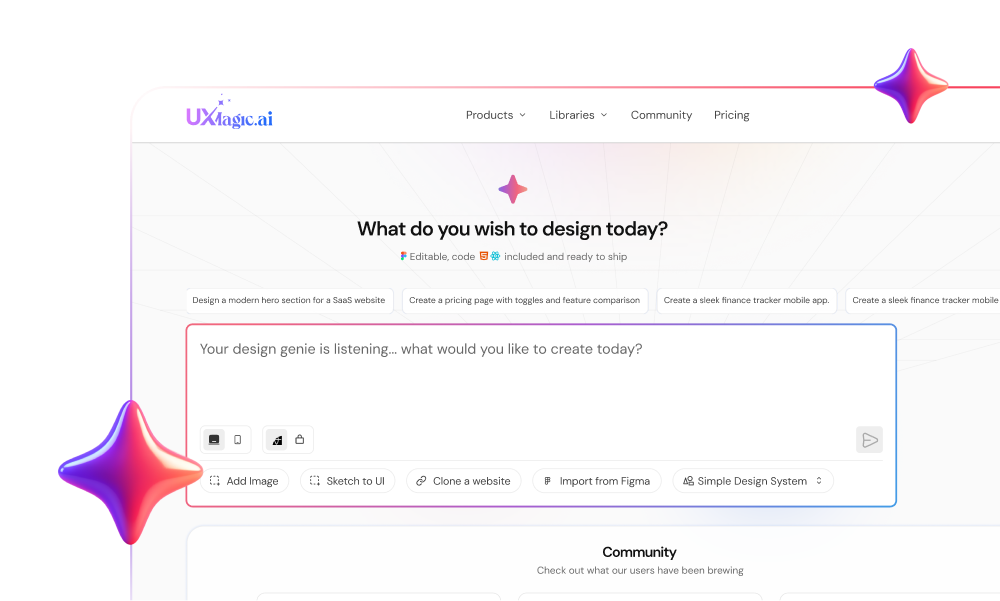
This is exactly where UXMagic’s Flow Mode changes the game. It generates entire UI journeys as a single state machine instead of disconnected layouts, so headers, navigation, and interaction logic stay mathematically consistent across steps.
How to Prevent AI from Hallucinating Your User Interface
Structural hallucination happens when the AI invents UI elements your product doesn’t support.
It adds fake tabs. Moves CTAs. Fills whitespace with nonsense.
That’s not creativity. That’s ambiguity.
The fix is governance.
Implementing Human-in-the-Loop Sectional Editing
Treat AI output like untrusted code.
Audit it in layers:
- lock navigation
- lock header hierarchy
- regenerate broken tables
- stress-test edge states
- inject real data strings
This compile–feedback–repair loop prevents cascading layout collapse.
Example stress tests that immediately expose weak UI architecture:
- 80-character localized labels
- multi-axis analytics charts
- empty database states
- duplicate email validation errors
- bulk-delete confirmation flows
Strong UI survives these. Weak UI explodes.
Moving from Prompt to Production: DOM-Aware Code Export
Here’s the simplest rule in modern AI UI workflows:
If your tool can’t export DOM-aware structure, it’s a wireframing toy.
Static images don’t ship products.
Component scaffolds do.
A production-ready AI workflow outputs:
- structured HTML hierarchy
- reusable React components
- token-aligned spacing variables
- CSS-ready layout logic
That eliminates the traditional Figma-to-React translation bottleneck entirely.
This is where UXMagic acts less like a design generator and more like front-end scaffolding infrastructure. Because interfaces are assembled from component rules, not pixel diffusion. You can move directly into deployable structure instead of rebuilding layouts manually.
If your goal is bypassing manual Figma-to-React translation, DOM-aware export is the single highest-leverage upgrade you can make to your workflow.
Ship Faster Without Shipping Chaos
Founders don’t need prettier mockups.
They need interfaces that survive real data, edge cases, and developer handoff.
The difference isn’t better prompting. It’s better constraints.
If your current workflow still generates disconnected screens, try building your next feature as a flow instead of a canvas. UXMagic’s Flow Mode lets you generate consistent multi-screen journeys with locked tokens and deployable structure, so your UI ships at the same speed as your backend.
Ship UI Faster Without a Design Team
Generate consistent, production-ready multi-screen flows with UXMagic—no token drift, no rebuild cycles.