TL;DR: The best AI for UI design depends on the job. For consistent multi-screen product flows with Figma and React export, use UXMagic's Flow Mode. Figma teams should try Figma Make or UX Pilot, beginners Uizard or Visily, budget-first users Google Stitch, and developers v0, Magic Patterns or Subframe. New to this? Start with our step-by-step guide on how to design UI with AI.
Searching for the best AI for UI design used to mean finding the tool that made the prettiest first screen. That problem is solved. Nearly every tool on this list can turn a prompt into a credible dashboard in under a minute.
The harder problem shows up on screen three. Typography drifts, the navigation changes, the button style from the login screen no longer matches checkout, and the export arrives as absolutely positioned layers an engineer will not merge. We call the time spent fixing that the verification tax, and it is still the best test of whether an AI design tool saves you time or just moves the work downstream.
So this guide, updated for September 2026, ranks AI UI design tools by the job you need done, and within each job by structural integrity: does the tool hold a system across screens, and does its output survive handoff? We build UXMagic, so we tell you where it fits and where another tool is the better choice.
Quick picks: best AI UI design tools by use case
| Use case | Best pick | Runner-up | Free tier |
|---|---|---|---|
| Full product flows, Figma + code export | UXMagic | UX Pilot | Yes, 20 credits/day |
| Designing inside Figma | Figma Make | UX Pilot | Make needs a paid seat |
| Beginners and non-designers | Uizard | Visily | Yes, capped |
| Completely free exploration | Google Stitch | UXMagic Free | Yes |
| Frontend code (React) | v0 | Magic Patterns, Subframe | Yes, capped |
| Marketing websites | Relume | Framer | Yes, capped |
| Working apps with a backend | Lovable | Bolt | Yes, capped |
| Agent-driven design in chat | Claude Design | UXMagic via MCP | Paid Claude plans only |
What an AI UI design tool actually does in 2026
An AI UI design tool turns intent (a prompt, a screenshot, a hand-drawn sketch, a URL or a product doc) into editable interface screens. The good ones then let you iterate on parts of a screen rather than regenerating it, keep a theme of colours, type and spacing across every screen, and hand off to Figma, code or a live URL.
It helps to separate three overlapping categories. AI wireframe generators settle structure in low fidelity. UI generators handle look and feel. App builders such as Lovable and Bolt add a backend and ship working software. Most tools now blur the lines, which is why picking by use case beats picking by feature list. If the terminology is still fuzzy, our explainer on wireframe vs mockup vs prototype lays out where each fits, and our sibling guide on how to design UI with AI walks through the full workflow step by step.
Best AI for full product flows
- UXMagic
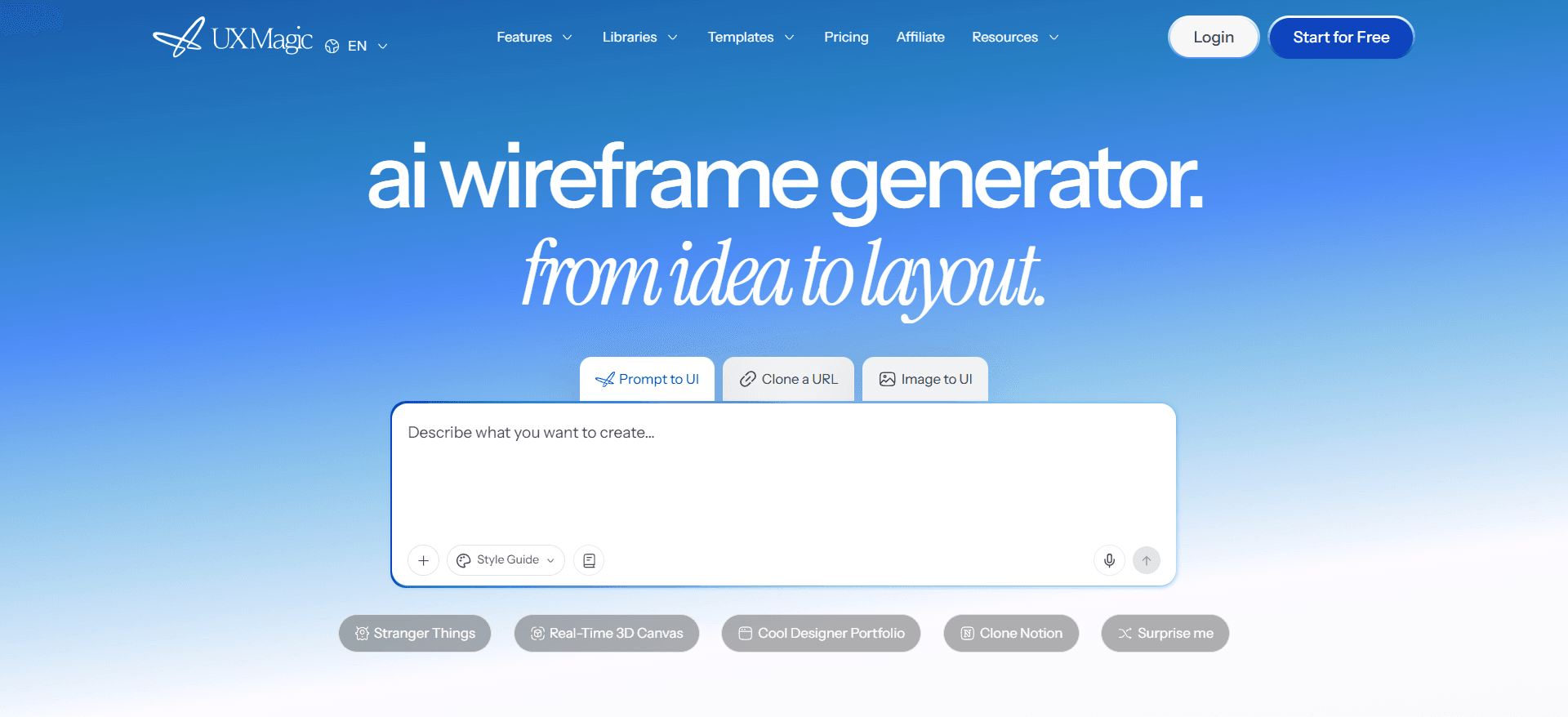
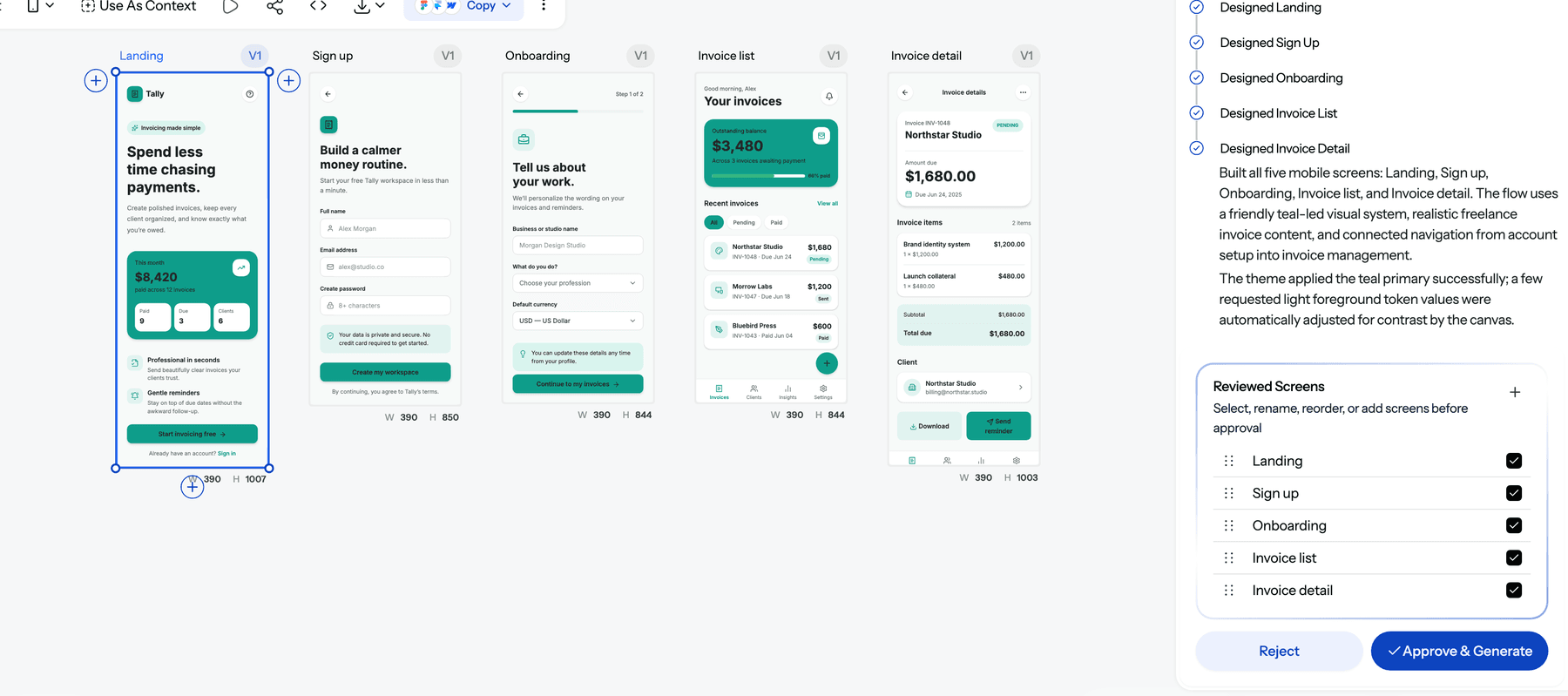
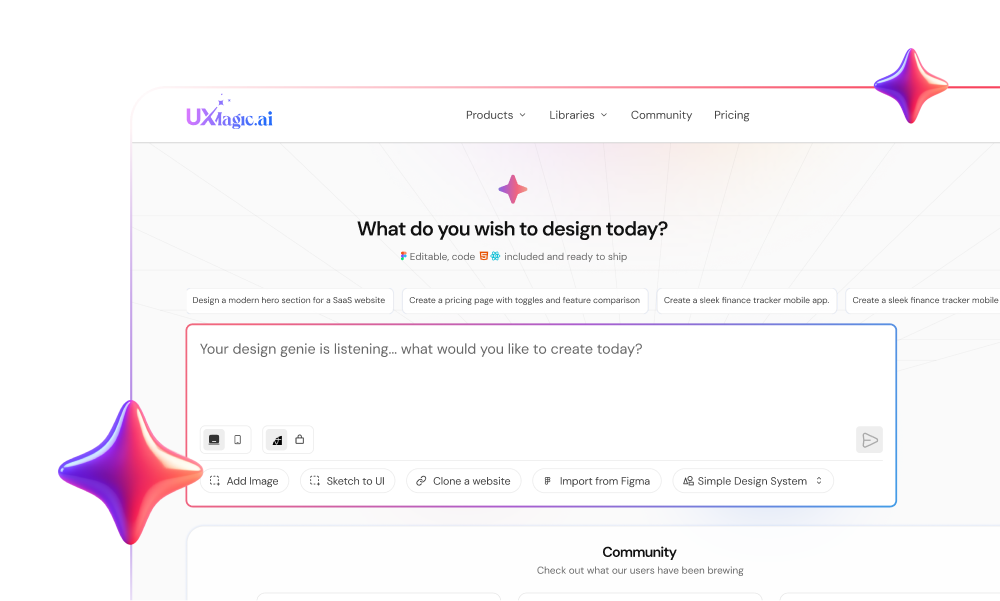
Most AI tools generate screens. UXMagic generates journeys. You describe what you want, the AI proposes a screen plan (a named list of screens with a one-line purpose each), you approve or edit it, and then it designs each screen on an infinite canvas while you watch. Colours, fonts, radii and spacing are stored as design tokens on the project, so "make it dark" moves every screen together instead of letting one drift.
That matters because context collapse happens between screens, not inside them. Flow Mode designs the whole journey with a shared theme and navigation, and you can add a "forgot password" screen later without breaking the system.
Best for: founders, PMs and designers who need a consistent multi-screen flow (onboarding, checkout, a SaaS dashboard) that can go to Figma or production code.
What it does well:
- Starts from a prompt, a screenshot or image, a hand-drawn sketch, a URL you want to clone, or an existing Figma file.
- Targeted chat edits ("make the hero shorter") cost a fraction of a regeneration, so approved layouts stay intact.
- Exports to Figma with real auto-layout, to HTML or React with Tailwind, or publishes a live site on your own domain.
- An MCP server lets Claude, Cursor, VS Code, Windsurf and Codex read and edit your actual designs.
Where it falls short: it is not a pixel-level illustration tool or a code IDE. Exported code is a front end with no data layer or routing, so you still wire it into your app. Multi-screen runs are charged per screen, so check your balance before a large flow.
Pricing: Free gives 20 credits a day (up to 3 screens a day across 5 projects, plus 1 Figma export). Pro is $35/month, or $17.50/month billed annually, with 2,400 credits a month (up to 400 screens). Details are in plans and limits.
Best AI UI design tools for Figma users
- Figma Make (Figma AI)
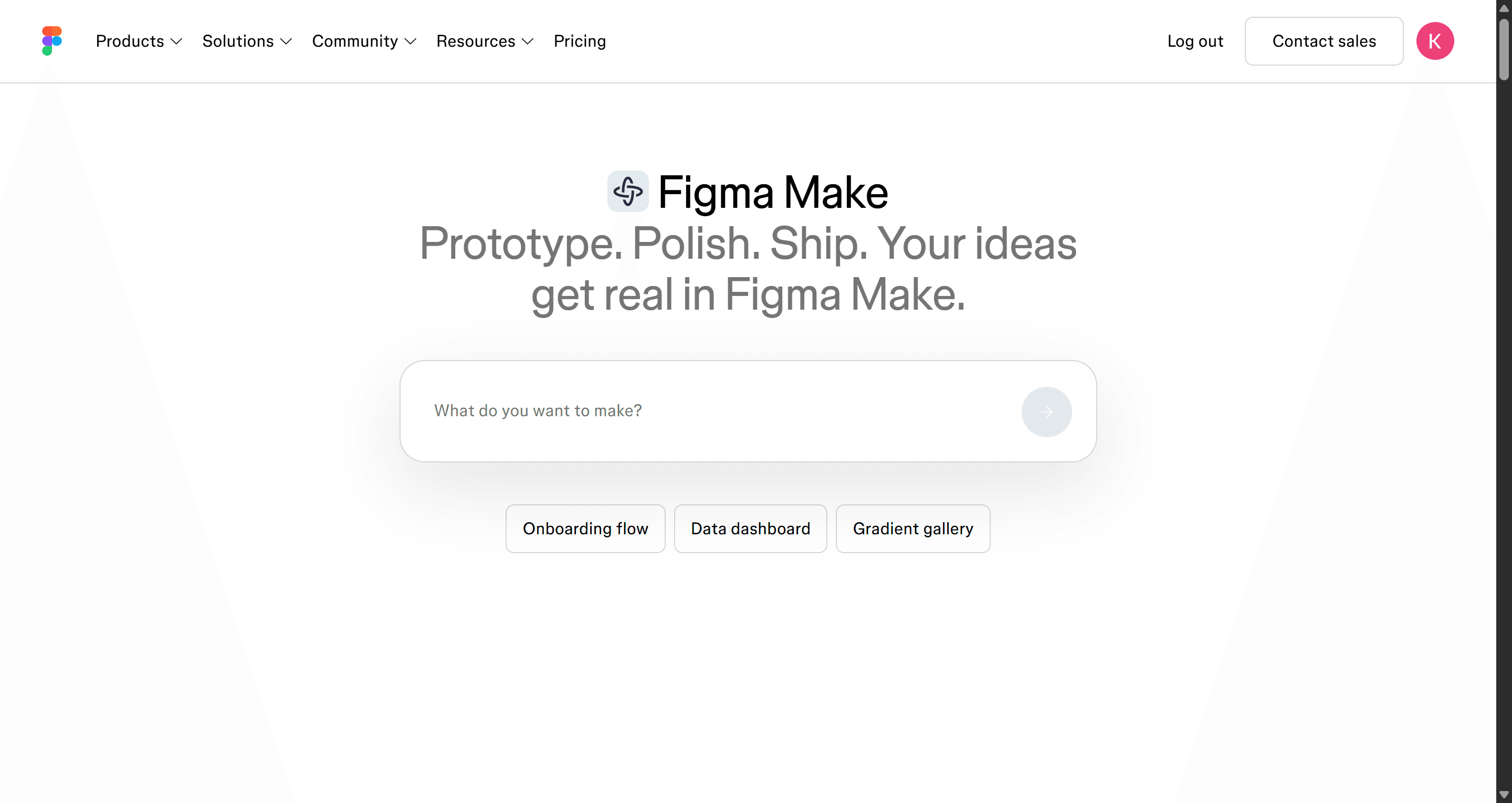
Figma Make is Figma's prompt-to-app surface, sitting alongside the AI features built into the Figma editor. You describe an interface and get a working, code-backed prototype you can refine by chat or by editing, inside the ecosystem your team already uses.
Best for: design teams on paid Figma plans who want fast layout exploration, component variations and interactive prototypes without switching tools.
Where it falls short: Figma Make is not available on the free Starter plan. Full seats on Professional ($16/month) include 3,000 AI credits a month, and heavy iteration eats into that allowance. It is strongest on single screens and small prototypes; long multi-screen journeys need more manual stitching to stay consistent.
Read our breakdown of what Figma AI can do, our list of Figma Make alternatives, or the head-to-head UXMagic vs Figma Make page. If you want AI screens inside Figma without Make, UXMagic's Figma AI generator and Figma plugin send editable, auto-layout frames straight to your file.
- UX Pilot
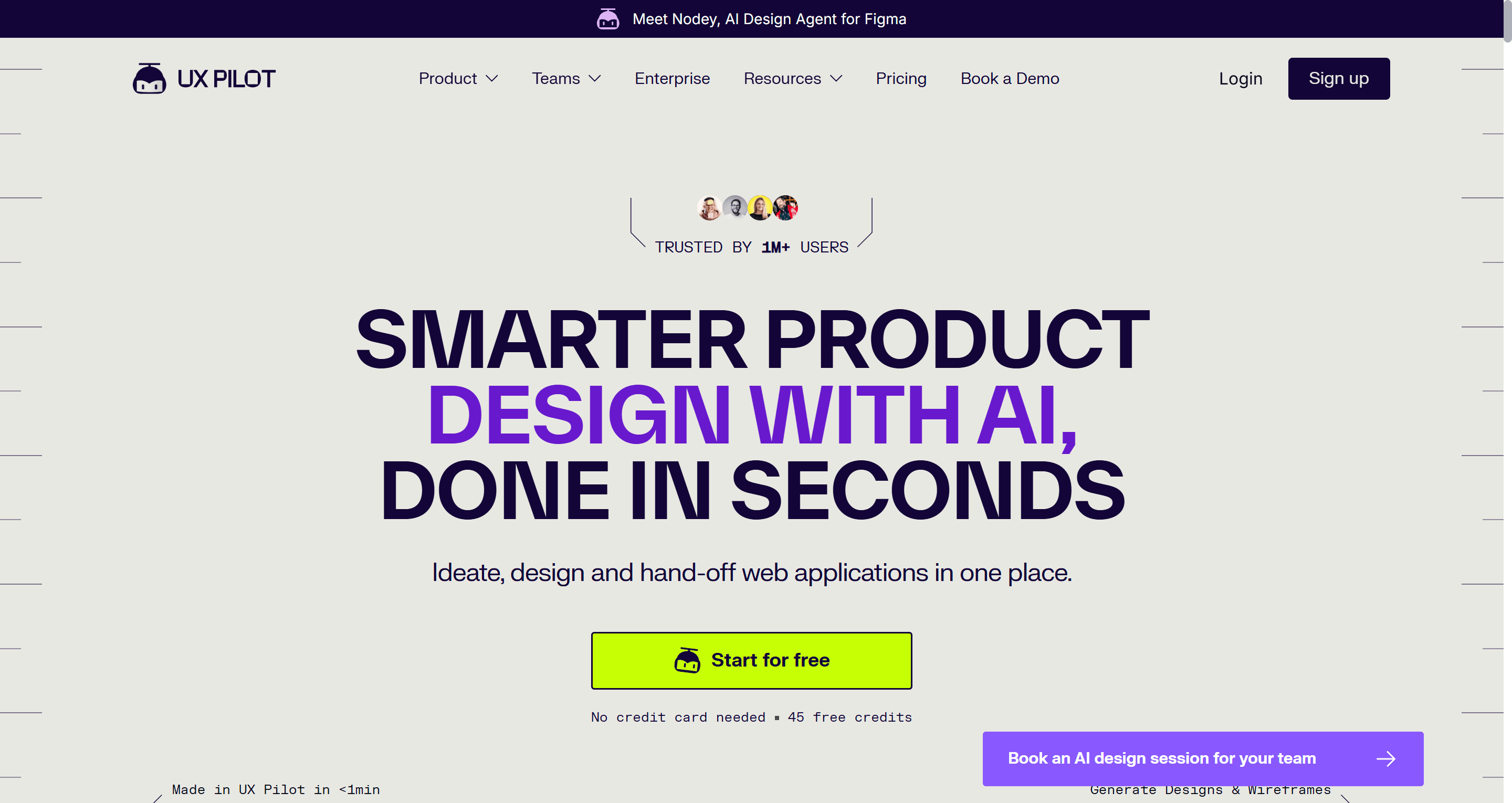
UX Pilot generates wireframes and hi-fi screens from prompts, runs as a web app and a Figma plugin, and adds predictive heatmaps and design review on top. It is one of the few tools that leans into UX analysis rather than pure generation.
Best for: designers who want generation plus early usability signals, and who hand off in Figma.
Where it falls short: it is stronger earlier in the process than at production polish, and credits go quickly on hi-fi iterations. UX Pilot's own site lists Pro at $22/month billed annually for 750 credits, above a free plan with 80 daily credits, with a small free allowance.
Read our full UX Pilot review.
Best AI for beginners and non-designers
- Uizard
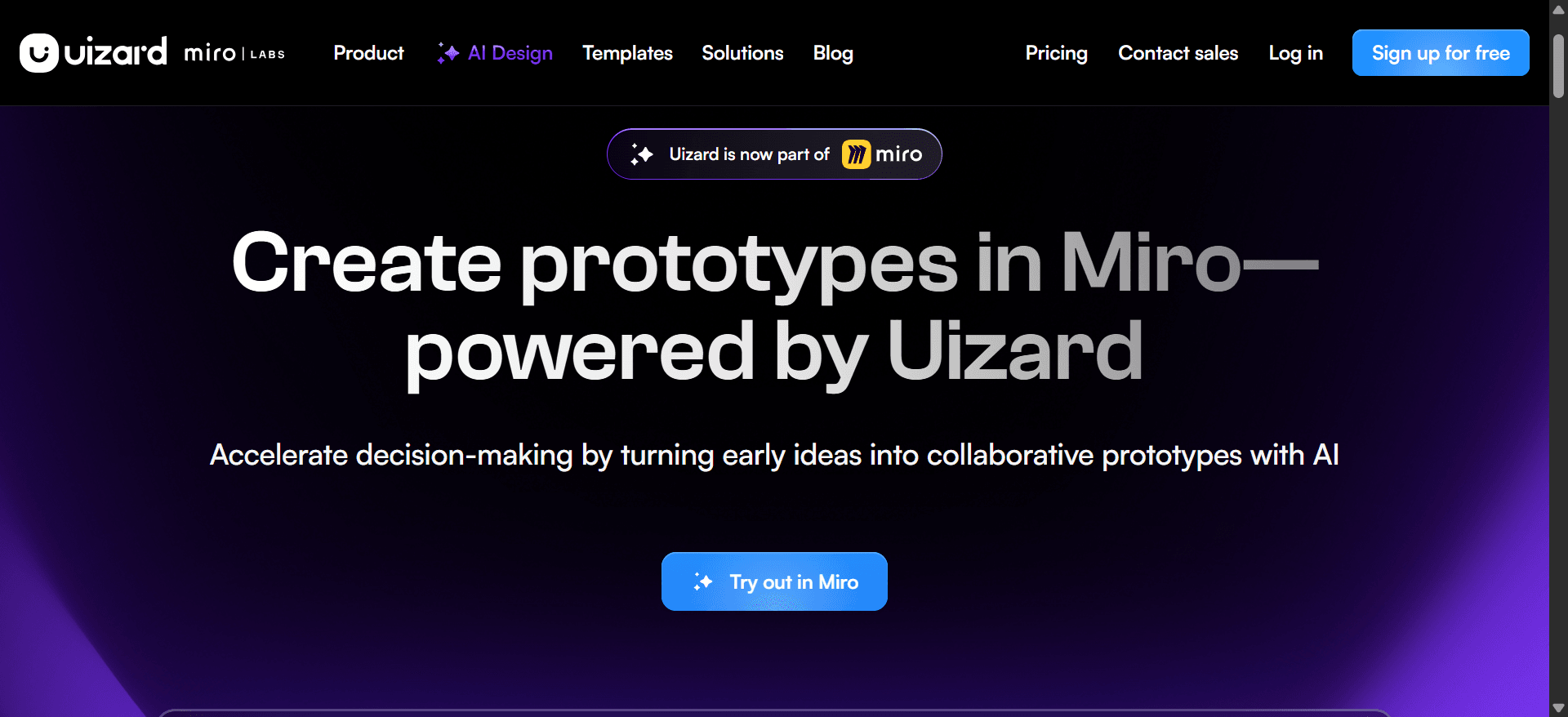
Uizard was one of the first AI UI tools, and it still targets non-designers. Its Autodesigner turns a text prompt into a multi-screen mockup, and it can convert hand-drawn sketches and screenshots into editable screens with a friendly drag-and-drop editor.
Best for: founders and PMs who want a clickable concept for stakeholders quickly, with no design background.
Where it falls short: output tends toward generic templates, and it rarely survives a move into a professional Figma or code workflow without a rebuild. The Free plan allows 2 projects and 3 AI generations a month on the older Autodesigner 1.5; Pro is $12/month billed annually for 500 generations on Autodesigner 2.0, and Business is $39/month.
Read our Uizard review or our roundup of Uizard alternatives.
- Visily
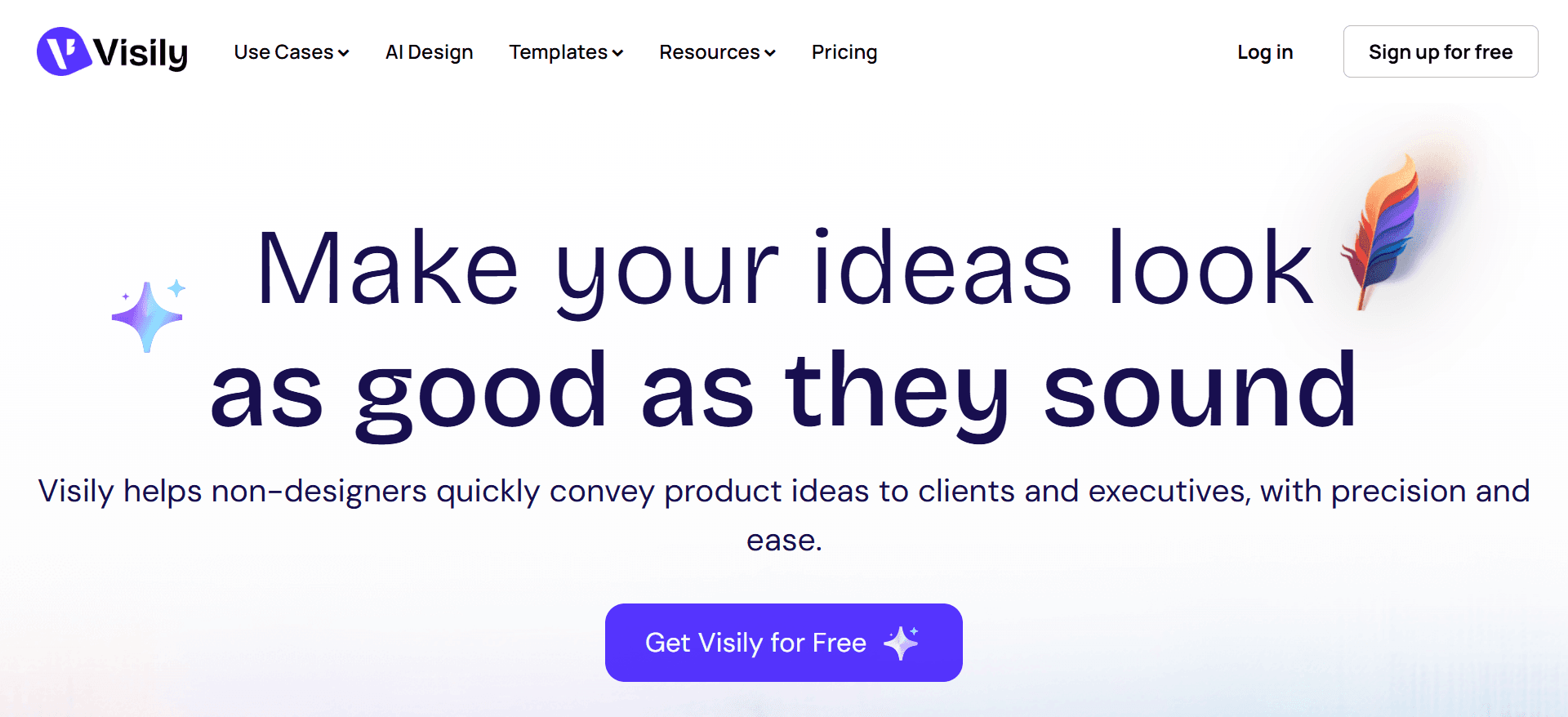
Visily is a collaborative, whiteboard-style design tool for teams without deep design skills. It converts screenshots and sketches into editable screens, switches between wireframe and hi-fi on the same board, and ships a large template library.
Best for: cross-functional product discussions and workshops where speed of alignment matters more than final polish.
Where it falls short: Figma and code export are paid features, and generation is less capable on complex, multi-state flows. The Starter plan is free with 2 editable boards and 300 AI credits per workspace a month; Pro is $14 per editor a month with 3,000 credits.
Read our Visily AI review.
Best free AI UI generator
- Google Stitch
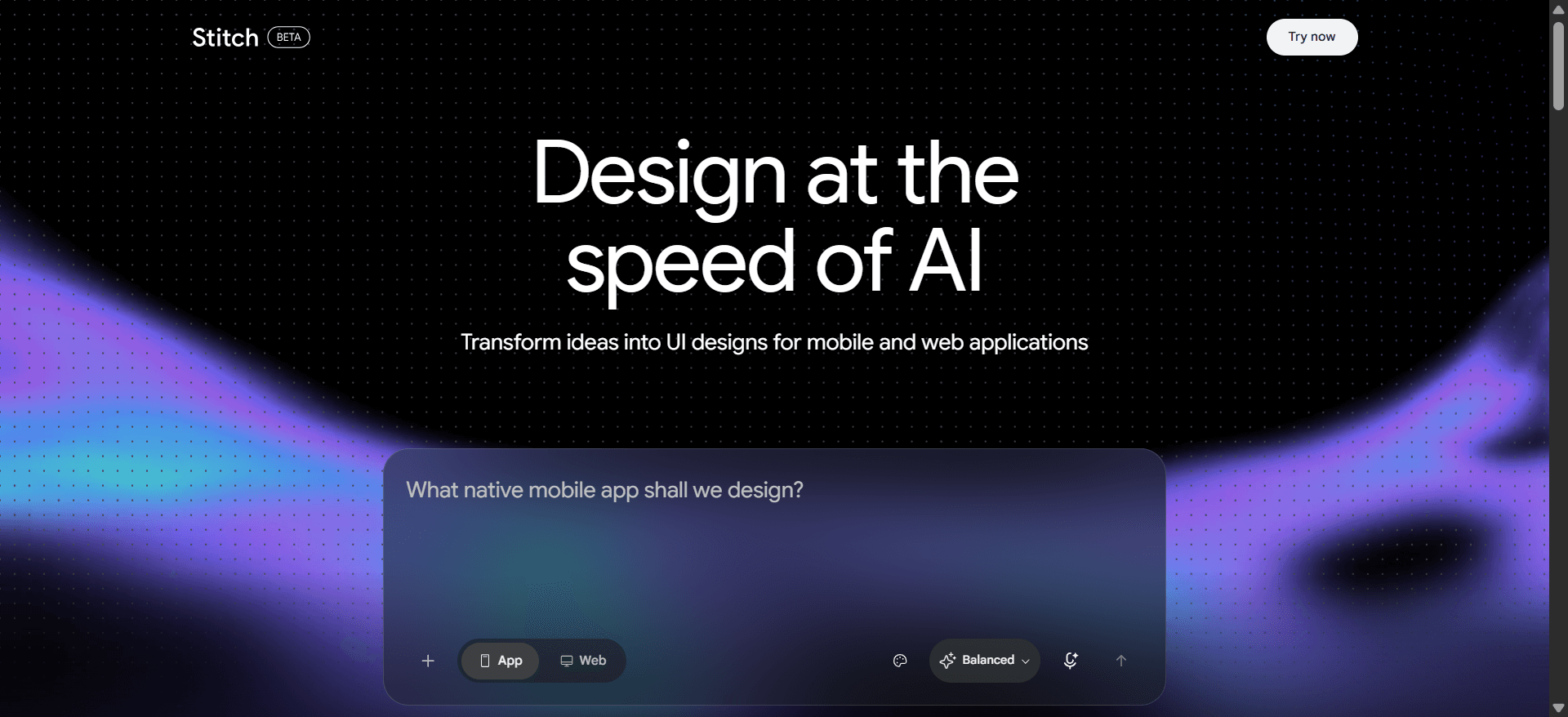
Google Stitch, which grew out of Galileo AI, is a Gemini-powered experiment from Google Labs. It turns prompts or reference images into web and mobile screens, offers a paste-to-Figma handoff and exports HTML/CSS.
Best for: anyone who wants to explore UI ideas at zero cost, and developers who need quick front-end scaffolding.
Where it falls short: it is a Labs product, so limits and features change without notice, and there is no paid tier with guarantees. Consistency across longer flows and design-system control are thinner than in dedicated tools, and output can feel generic without strong references.
Read our Google Stitch review, the backstory in Galileo AI is now Google Stitch, or our list of Google Stitch alternatives.
If free is your hard constraint, UXMagic's Free plan refreshes 20 credits every day, and the earn free credits steps add more without paying.
Design a whole flow, not one screen
Describe a journey, approve the screen plan, and watch every screen come out on one theme. Free plan, no card required.
Best AI UI design tools for frontend code
- v0 by Vercel
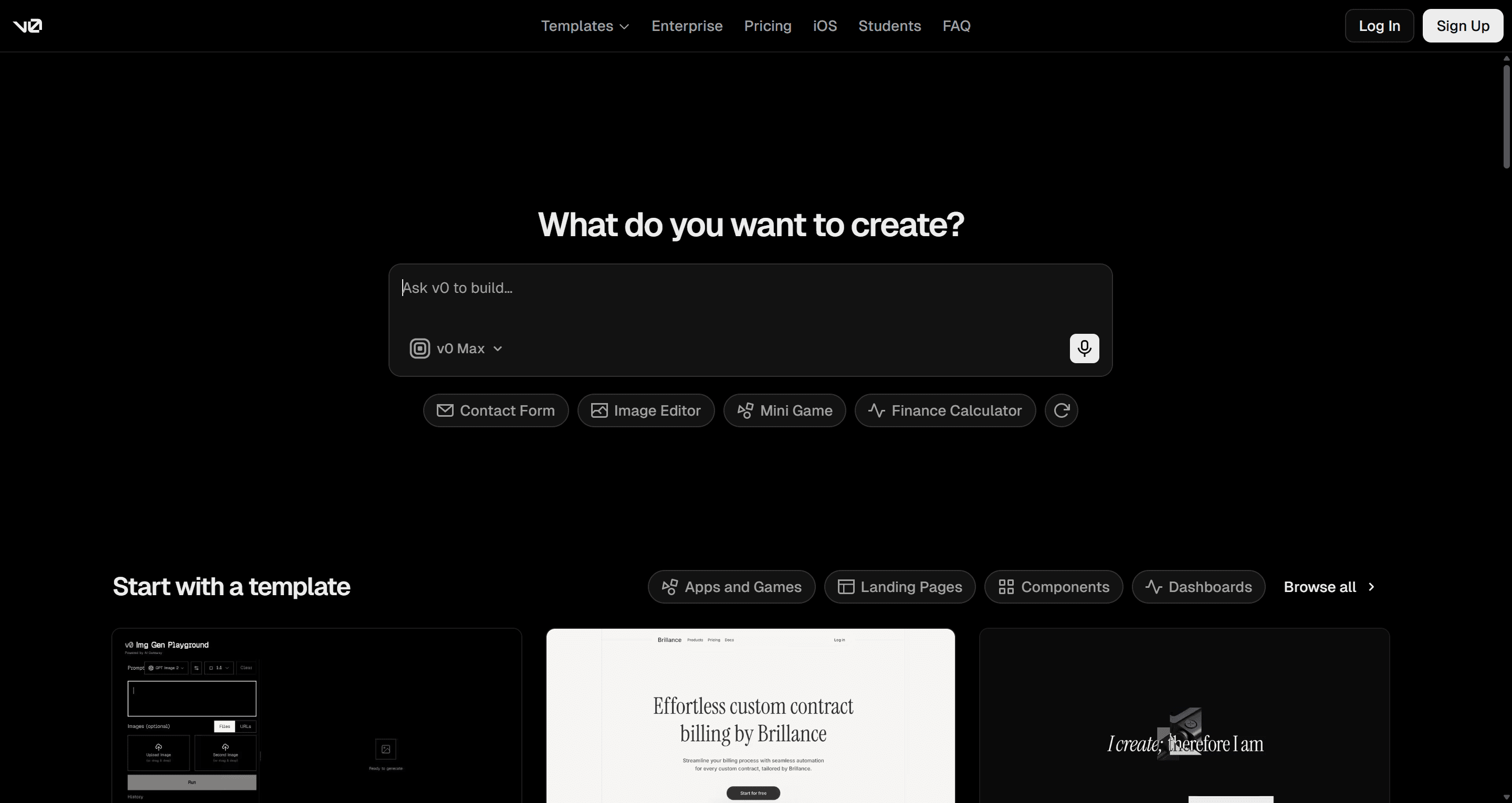
v0 generates React and Next.js interfaces, typically on shadcn/ui and Tailwind, and deploys to Vercel. Recent versions add Git integration and a full editor, so it behaves more like an app builder than a component generator.
Best for: developers who think in code and want UI that drops into a Next.js project.
Where it falls short: there is no visual design canvas in the Figma sense, and designs converge on the shadcn look unless you push them. Pricing is usage-based: the Free plan includes $5 of monthly credits with a 7-message daily limit, and paid plans start at $30 per user a month.
Read our v0 by Vercel review. For the background on the component layer v0 builds on, see shadcn/ui explained.
- Magic Patterns
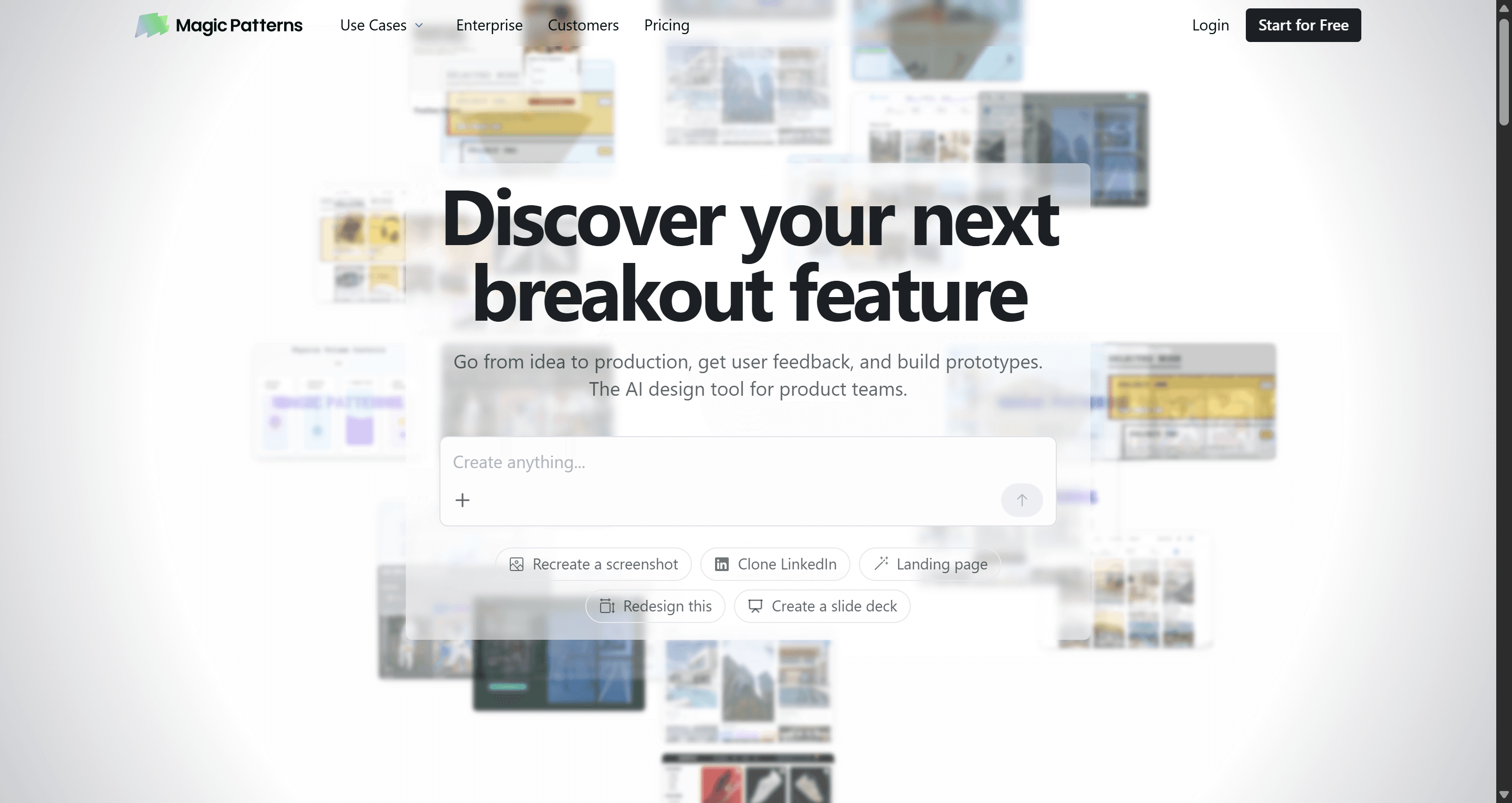
Magic Patterns is an AI prototyping tool for product teams. It generates UI from prompts or PRDs, can import your design system so output uses your components, and supports real-time multiplayer editing between design and engineering.
Best for: product teams that already have a component library and want feature prototypes that look like their real app.
Where it falls short: it shines at single features inside an existing product rather than greenfield multi-screen journeys. Paid plans start at $20 per seat a month (Starter), with Business at $100 per seat.
Read our Magic Patterns review.
- Subframe
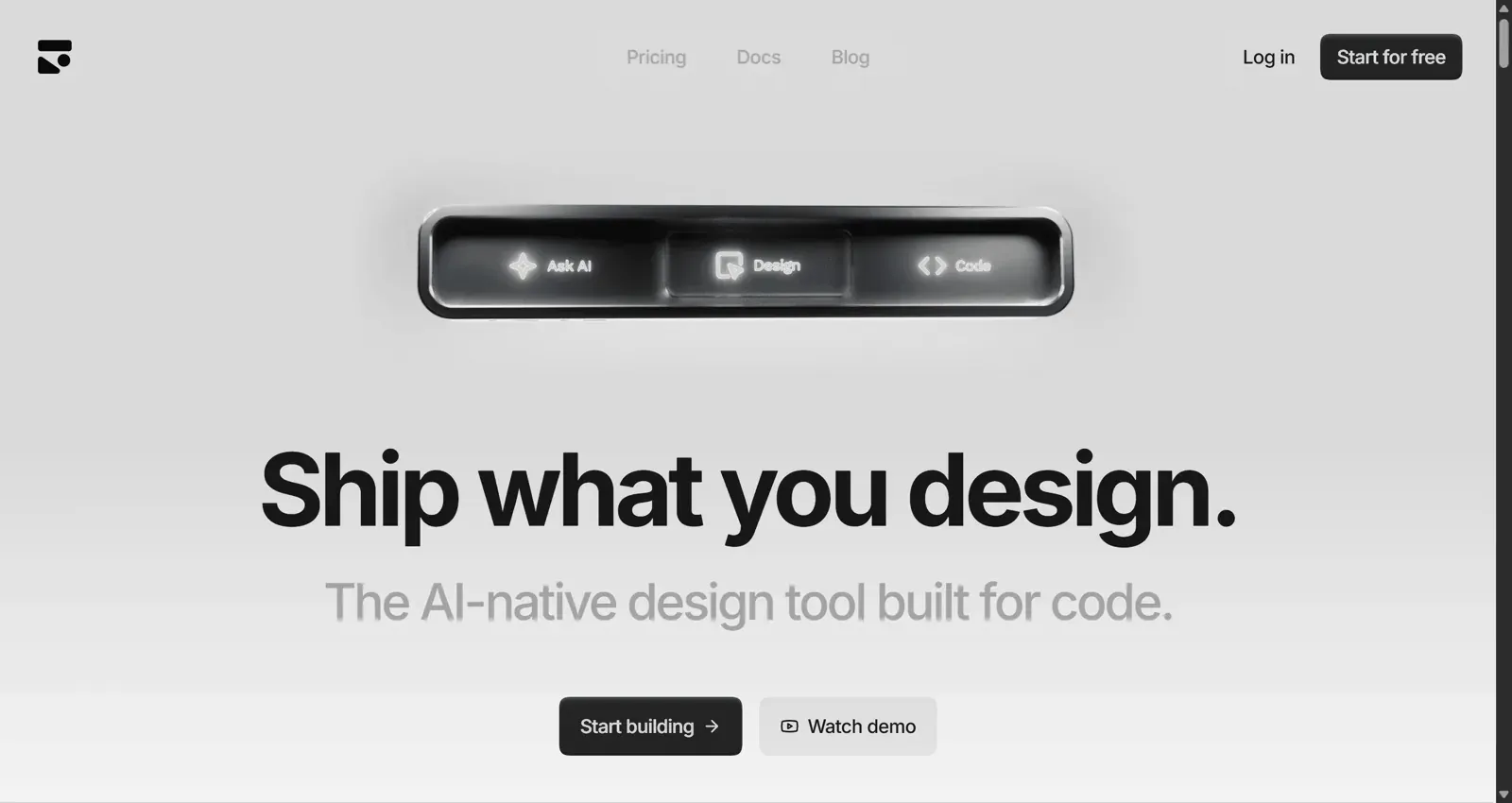
Subframe pairs a visual, Figma-like editor with AI generation, and every design maps to React and Tailwind components you sync into your codebase. It is closer to a design system tool than a prompt toy.
Best for: design engineers and small teams who want designers and developers editing the same component source.
Where it falls short: there is a learning curve, and it rewards teams that already think in components. It offers free and paid tiers, and the free tier is capped on pages.
Read our Subframe review. If you mainly want code out of a design you already have, UXMagic's design to code generator and AI React generator cover that path, and our guide to the best React UI component libraries helps you choose a base.
Best AI for websites and marketing pages
- Relume
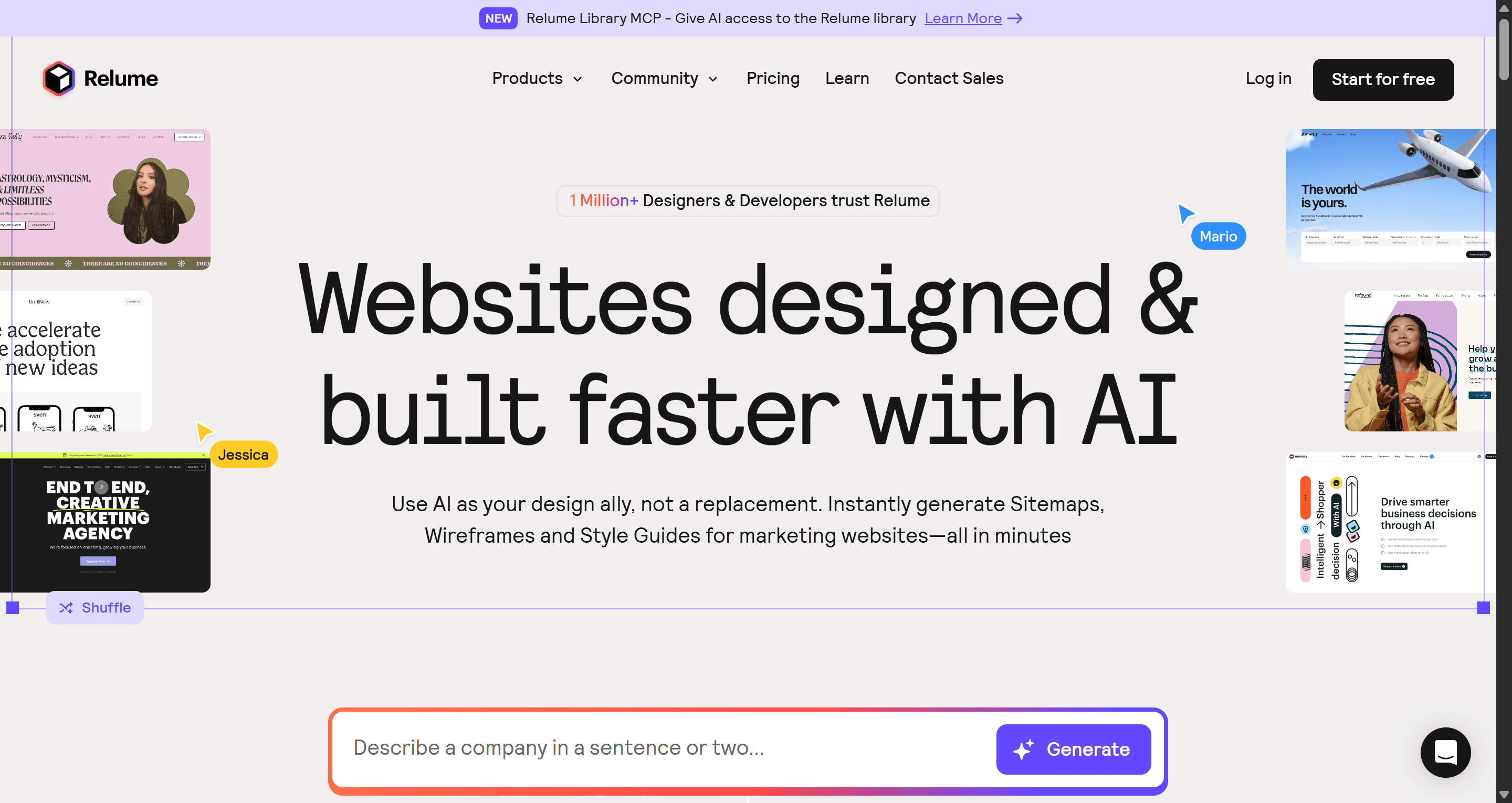
Relume starts from a sitemap. You describe a company, it proposes the page structure, generates section-by-section wireframes with real copy, then applies a style guide. Its component library maps to Figma, Webflow and React.
Best for: agencies and web designers producing structured marketing sites, especially on Webflow.
Where it falls short: it is built for websites, not product UI, so dashboards and app flows are out of scope. The free plan is limited to 30 components; paid Site Builder plans start at $18/month (Starter), with Pro from $40/month.
Read our Relume review.
- Framer AI
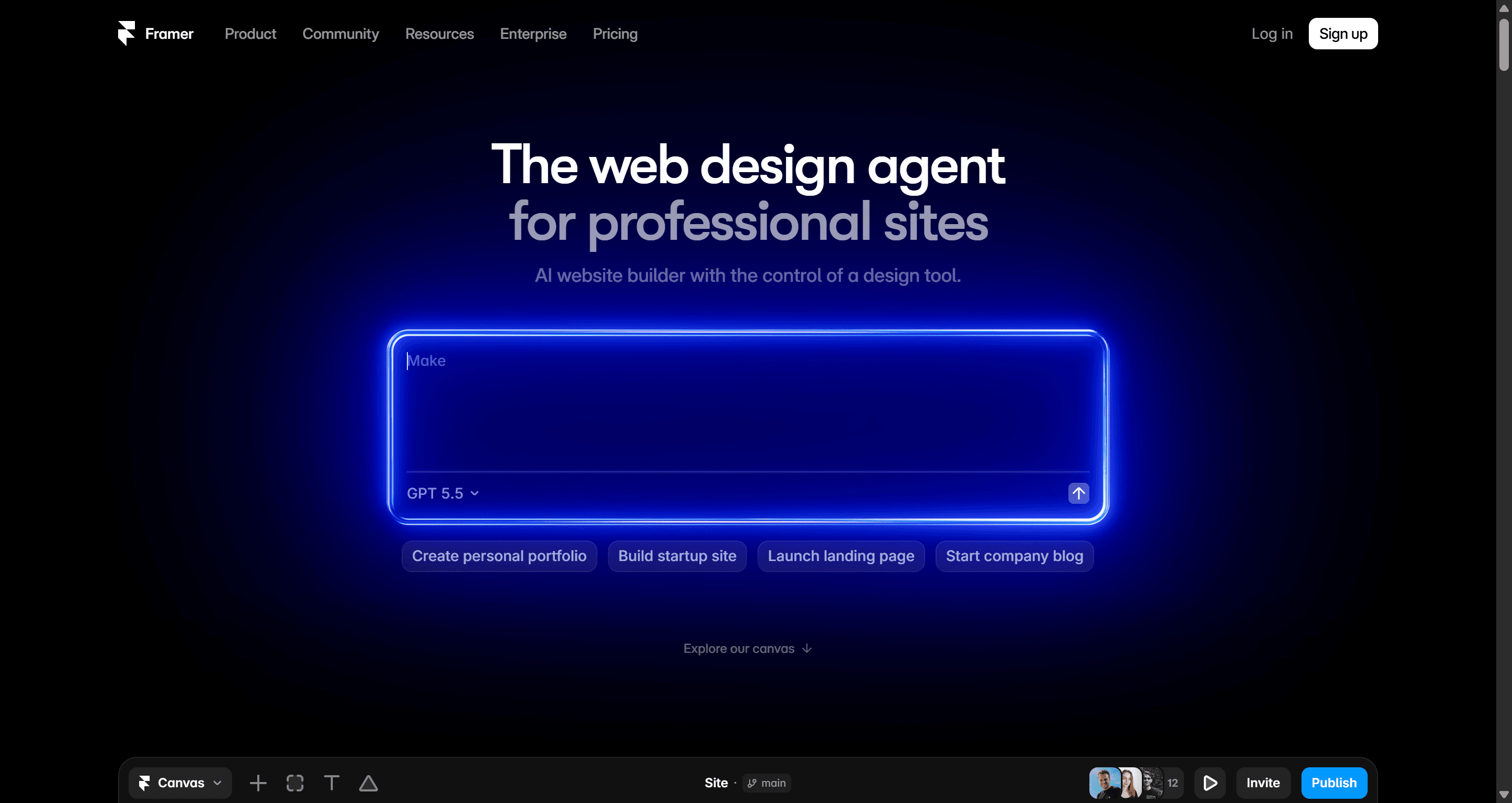
Framer generates responsive page layouts from a prompt, lets you refine them with a polished visual editor, and publishes with hosting and CMS included. Its AI agents run on credits.
Best for: founders, designers and marketers shipping landing pages and portfolios without a developer.
Where it falls short: sites live on Framer's platform rather than exporting as code you own, and it is not built for product UI. The Free plan includes 500 AI credits to try and a Framer subdomain; site plans start at $10/month (Basic) and $30/month (Pro).
See our UXMagic vs Framer AI comparison. If you want a landing page that you can also export as code, try UXMagic's AI landing page generator and start from one of our website templates, then publish through your first UXMagic site.
Best AI app builders (when you need a working product)
- Lovable
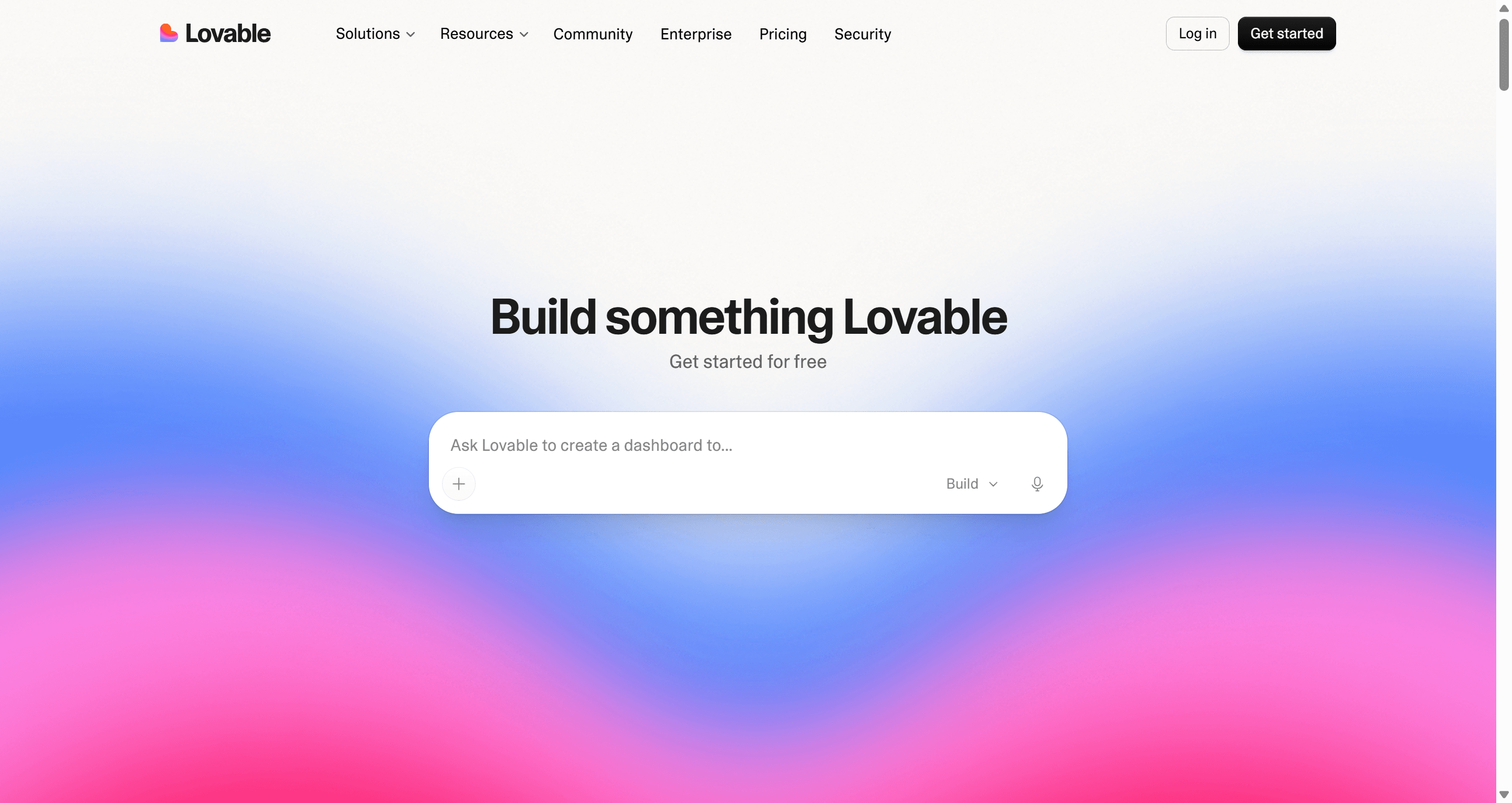
Lovable builds full-stack web apps from chat, with a hosted backend (Lovable Cloud), auth and a database. The UI is a means to an end: the goal is working software.
Best for: non-developers who need a functional MVP with real data, not just screens.
Where it falls short: design control is limited, and fixing layout by prompting consumes credits. The Free plan includes a daily grant of 5 build credits (up to 30 a month); paid plans are credit-based and shared across a workspace. For a design-first front end, many teams design in a UI tool first and then build.
Read our Lovable review and our sibling guide to Lovable alternatives.
- Bolt.new
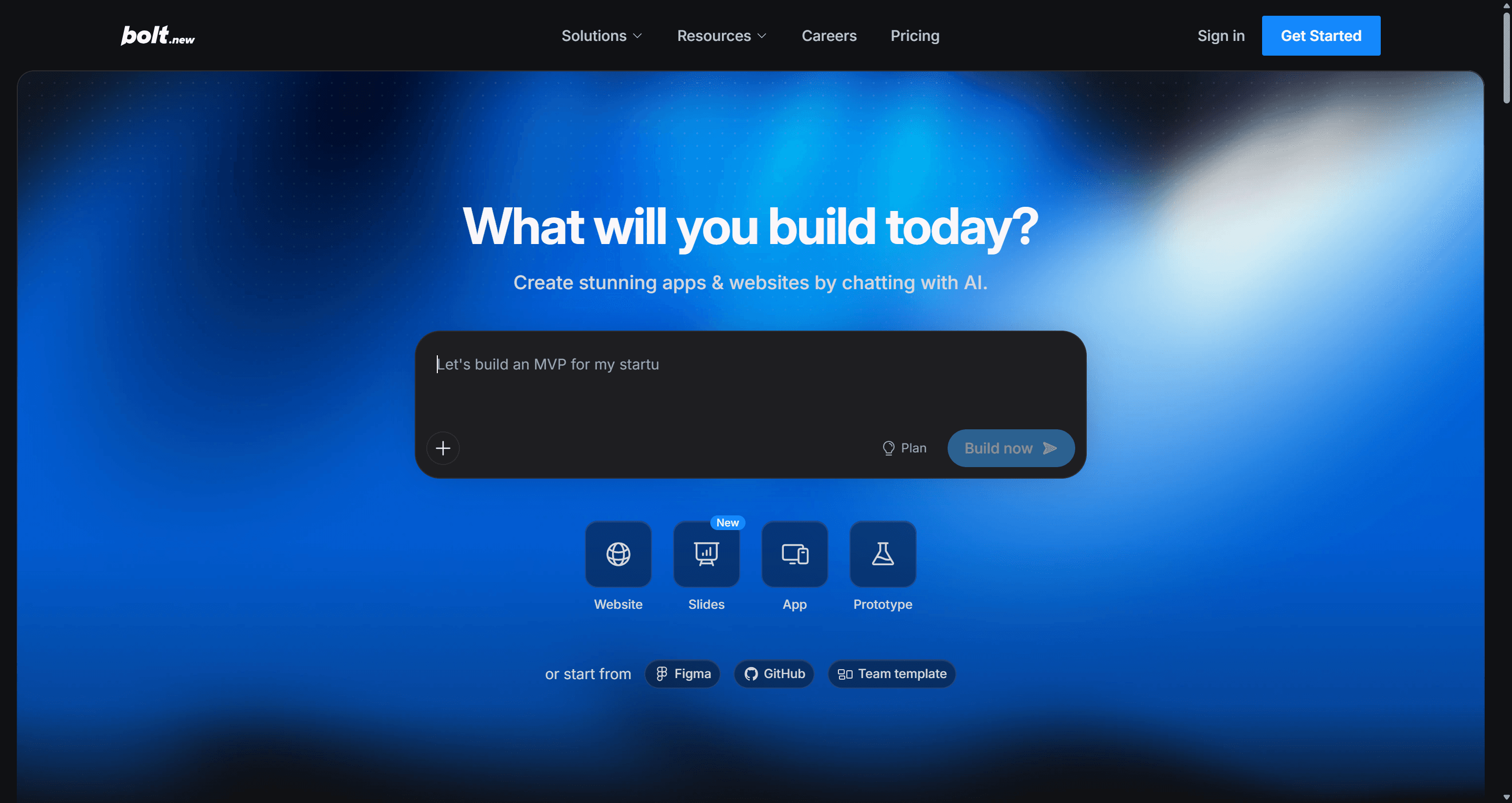
Bolt runs a full development environment in the browser and generates and edits full-stack apps from prompts, with deploy built in. It is more developer-flavoured than Lovable, exposing the code and terminal.
Best for: technical founders and developers prototyping full-stack apps quickly.
Where it falls short: it is token-based, and long debugging loops burn tokens fast. Free gives 1M tokens a month with a 300K daily limit; Pro is $25/month starting at 10M tokens, with rollover.
Read our Bolt.new review and our breakdown of Bolt.new pricing. For a three-way comparison, see Bolt vs Lovable vs Base44.
Best AI design agent
- Claude Design
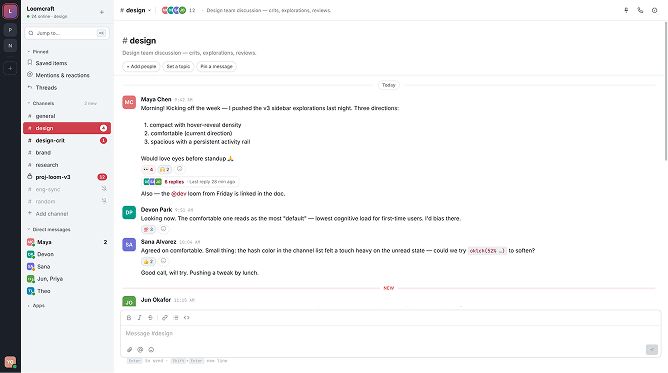
Claude Design is an Anthropic Labs product for creating prototypes, wireframes, slides and one-pagers by conversation. During onboarding it can build a design system by reading your codebase and design files, and it exports to Canva, PDF, PPTX or standalone HTML, or hands off to Claude Code.
Best for: teams already paying for Claude who want decks, one-pagers and quick prototypes in the same tool they use for everything else.
Where it falls short: it is only on paid Claude plans (Pro, Max, Team, Enterprise) and draws from your subscription limits. It is not a Figma-native tool, so teams that hand off in Figma need another step.
Read our Claude Design vs UXMagic comparison. You can also use both: the UXMagic connector for Claude lets Claude create projects, generate screens and export to Figma inside UXMagic, as covered in connect UXMagic to Claude.
AI UI design tool pricing compared
Prices below are from each vendor's site in September 2026. Annual billing is usually cheaper; check before you buy.
| Tool | Free tier | Entry paid plan |
|---|---|---|
| UXMagic | 20 credits/day, 5 projects | Pro $35/mo, or $17.50/mo annually |
| Figma Make | Not on Starter | Professional $16/mo full seat |
| UX Pilot | 80 daily credits, 1 project | Pro $22/mo billed annually |
| Uizard | 2 projects, 3 AI gens/mo | Pro $12/mo (annual) |
| Visily | 2 boards, 300 AI credits/mo | Pro $14/editor/mo |
| Google Stitch | Free (Labs limits) | No paid plan |
| v0 | $5 credits/mo, 7 msgs/day | $30/user/mo |
| Magic Patterns | Limited | Starter $20/seat/mo |
| Subframe | Page-capped | Paid Pro tier |
| Relume | 30 components | Starter from $18/mo |
| Framer | 500 AI credits, subdomain | Basic $10/mo per site |
| Lovable | 5 build credits/day | Credit-based plans |
| Bolt | 1M tokens/mo | Pro $25/mo |
| Claude Design | None | Included in Claude Pro and up |
The sticker price hides the real cost, which is how much each fix costs. In UXMagic a targeted edit costs 0.2 credits against 3 for a new screen, and theme changes are free; the full table is in how credits work. Whichever tool you pick, learn its cheapest way to change one thing.
How to choose the best AI UI design tool
Work backwards from where the design has to end up.
- Ends up in Figma? Pick a tool with a real auto-layout export, not a flattened image. UXMagic, Figma Make, UX Pilot and Stitch all get you there with different amounts of cleanup. Our list of Figma AI plugins covers in-Figma options.
- Ends up in a React codebase? v0, Subframe and Magic Patterns are code-first. UXMagic exports React plus Tailwind with tokens and can push to GitHub. Read what a good design handoff looks like before you commit.
- Ends up as a live marketing site? Relume, Framer or UXMagic's AI website generator.
- Needs a backend now? Lovable or Bolt. Design first if the UI matters.
- Needs to be many screens that match? Test the tool on a five-screen journey, not a single hero. That is where most of them break.
Then run the same brief through two finalists. Give each a style guide or reference, describe the journey rather than a screen, and time how long the output takes to fix. Our guides on prompting for UI that ships and prompting for user flows, not screens give you briefs to reuse.
A workflow that keeps the verification tax low
The tools matter less than the order you use them in. This is the loop we see working for product teams:
- Constrain before you prompt. Set colours, type and spacing first. In UXMagic the AI style guide generator does this, and theme changes are free and apply everywhere.
- Plan the journey, not the screen. Fixing a screen list costs one round trip; fixing eight designed screens costs eight regenerations. Include empty, error and success states.
- Edit sections, don't regenerate. Targeted edits keep approved structure intact and cost far less.
- Verify like a designer. Check contrast, edge cases and navigation. Our accessibility heuristics checklist is a quick pass.
- Export structure engineers accept. Tokens, components and auto-layout, not absolute positioning.
For the thinking behind this, read why single-screen AI design is a dead end and why AI design fails without human direction.
Our recommendation
If your job is a product interface with more than a couple of screens that has to reach Figma or code, start with UXMagic: plan the flow, generate it on one theme, edit in place, and export. It is free to try, and our templates give you a head start.
Be honest about scope, though. If you need a working backend today, Lovable or Bolt will get there faster. If your whole team lives in Figma and works mostly on single screens, Figma Make may be enough. If you want components landing directly in a Next.js repo, v0 is the shortest path. Many teams combine a design-first tool with a builder, and UXMagic's MCP connection makes that handoff direct. For more head-to-heads, browse every UXMagic comparison.
Related guides
- 10 Best Magic Patterns Alternatives in 2026, Grouped by Workflow
- 11 Best v0 Alternatives in 2026, Grouped by the Job You Need Done
- 9 Best MagicPath Alternatives in 2026, Grouped by How You Work
- 8 Claude Design Alternatives in 2026, Free and Open Source Included
- Google Stitch Pricing 2026: Is It Free, and What Are the Limits?
- The Best AI Prototyping Tools in 2026, Grouped by Use Case
- Best Wireframing Tools in 2026: 10 AI, Free and Classic Picks
- Top 7 AI Tools for Design Consistency in 2026 (UI, UX, and Design Systems)
- Lovable vs Bolt in 2026: Which AI App Builder Fits Your Project?
- Best AI App Builder in 2026: 10 Tools Compared by Use Case
Stop paying the verification tax
Generate consistent multi-screen flows, edit sections without regenerating, and export to Figma or React. Start free with 20 credits a day.