
TL;DR
To find the official UXMagic login page, start at https://uxmagic.ai, verify the domain, and look for the sign-in option. Returning users can follow the authentication prompts, while new users should choose the account-creation route if available. If access fails, use the displayed recovery option or contact support. Never share passwords, verification codes, passkey data, or active recovery links.
UXMagic login page
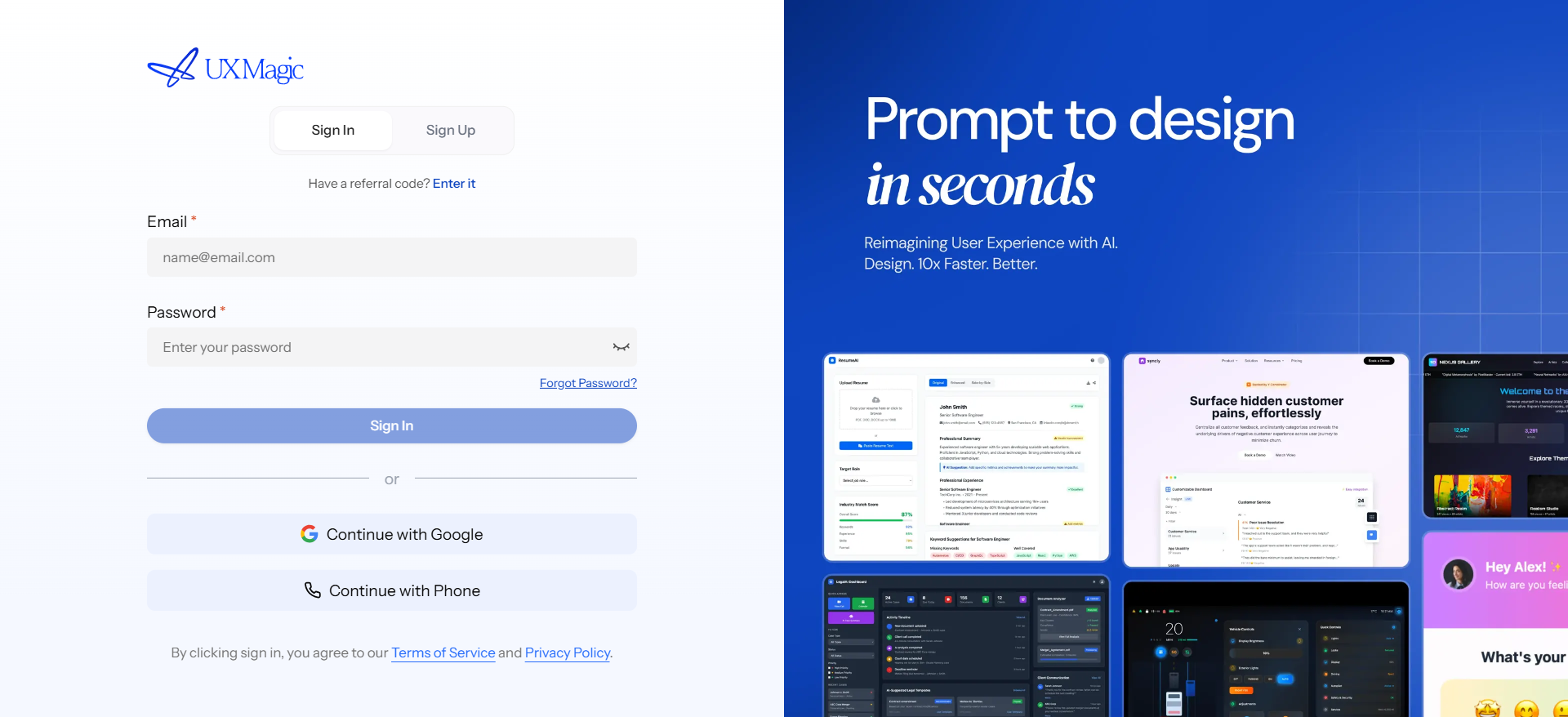 Returning user? Open
https://uxmagic.ai, find Sign in, and complete the authentication step presented.
New user? Look for Create account or the equivalent registration option. In a well-designed flow, registration remains visible without distracting people who already have a workspace.
A login page does not need to be memorable. It needs to be predictable, recoverable, and quick to use. We favour restrained branding here because recognition and task completion matter more than a clever layout.
The authentication form and its primary action should appear before help content, product information, or onboarding prompts. People arriving to work should not have to navigate a marketing experience first.
Sign in to your workspace
A dependable form uses persistent field labels rather than instructions that disappear when someone starts typing. Clear labels also help assistive technology distinguish an email address, password, verification code, or organization field.
We recommend supporting browser autofill and password managers. Pasting, password generation, and saved credentials should work without unnecessary restrictions.
After authentication, returning users should reach the workspace or page they originally requested. Sending them to an unrelated destination adds another decision after the task should be complete.
New to UXMagic?
People without an account need a visible, concise account-creation link. It should be easy to find without competing with the primary sign-in button.
We recommend keeping registration decisions separate from account access. Plan selection, onboarding questions, and workspace setup belong after someone deliberately chooses to create an account.
How to get to the UXMagic login page
Start from the official UXMagic site and find the sign-in action in the site navigation. Before entering account information, check that the browser is on the expected uxmagic.ai domain.
If UXMagic is part of a regular design workflow, we recommend bookmarking the verified destination. This provides a direct route back to an existing workspace without relying on advertisements, search results, or old messages.
Open the official sign-in page
Enter https://uxmagic.ai directly in the browser or follow the sign-in link from that site. Avoid using an unfamiliar advertisement, copied address, or unexpected email when the destination cannot be verified.
A returning designer’s path should be straightforward:
- Open the official domain.
- Find and select Sign in.
- Enter the requested account identifier.
- Complete the displayed authentication step.
- Continue to the intended workspace.
Check that you are in the right place
Confirm that the browser shows uxmagic.ai or an expected subdomain and uses HTTPS. Look closely for misspellings, extra words, misleading domain endings, or browser security warnings.
Do not enter credentials after following an unexpected link. Close the page, type the official address manually, and restart from the site navigation.
Log in to UXMagic on your phone
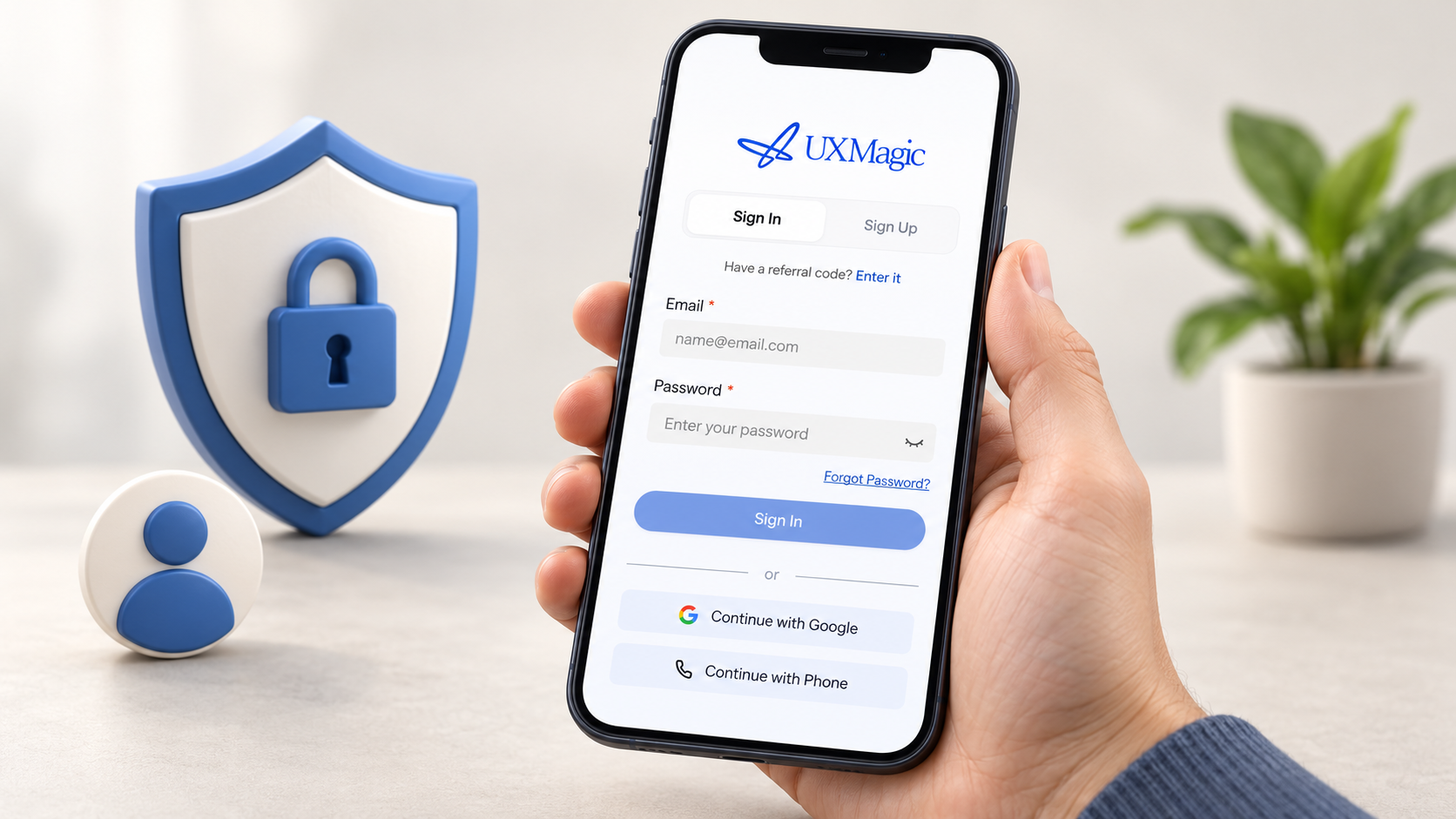 Open the official site in a mobile browser and find Sign in in the navigation. A usable mobile page should fit portrait orientation without horizontal scrolling or controls extending beyond the viewport.
Mobile authentication must account for the on-screen keyboard, password-manager overlays, and verification prompts. Generous tap targets and a visible primary button make the next step easier to complete.
Use autofill and password managers
Login fields need the correct browser semantics so mobile devices can identify usernames, email addresses, passwords, and verification codes. This enables operating-system autofill and reduces manual typing.
We do not recommend blocking paste or password managers. Such restrictions can interfere with generated passwords and create avoidable recovery work.
Handle codes and verification prompts
When one-time codes are supported, the input should accept pasted values and work with platform-level code autofill. Separating a code into several boxes must not make keyboard navigation or pasting unreliable.
If a code or link expires, the page should say so clearly and offer one obvious way to request another. When safe, it should preserve the account identifier rather than forcing the entire session to restart.
Choose the right sign-in method
A login page should display only the methods the product supports. The most common route belongs first, while less frequent options can appear progressively instead of forming a wall of buttons.
Passwords, passkeys, one-time codes, magic links, social providers, and single sign-on have different trade-offs. Magic links require inbox access, third-party providers add another dependency, and SSO may fail during an organization handoff.
Individual account access
The primary method should remain predictable between visits. Returning users need enough context to recognize whether they previously used an email address, another identifier, or an identity provider.
If an identifier requires a different supported route, the interface should explain the next step without revealing sensitive account information.
Organization or enterprise access
Enterprise teammates should see an organization sign-in option only when it applies to them. Any required organization name, domain, or identifier needs a plain-language explanation.
After successful SSO authentication, users should return to the workspace they requested. Error messages should avoid confirming whether a particular person or organization has an account.
Recover access to your account
Recovery belongs beside the login step where failure can occur. Hiding it in general documentation leaves people without a useful next action.
When it is safe, the form can preserve non-sensitive information such as an account identifier after an unsuccessful attempt. Neutral messages can guide legitimate users without confirming that a specific account exists.
Forgotten credentials
A clear recovery action should explain what happens next. For example, the page can say that instructions will be sent if the supplied identifier is eligible, rather than confirming an account match.
If no message arrives, check the identifier and review spam or filtered folders. Avoid repeatedly requesting messages while an earlier attempt may still be processing.
Locked or restricted account
A locked-account message should explain whether the restriction appears temporary and whether the next step is waiting, recovering access, or contacting support. It should not expose security thresholds or detection rules.
We recommend concise context, one prominent next action, and a support route for cases that self-service recovery cannot resolve.
Fix common login problems
A polished default screen matters less than useful failure states. Invalid credentials, expired codes, offline sessions, unavailable authentication services, and failed SSO redirects all need a practical recovery action.
When retaining an identifier does not create a privacy risk, keep it in place. One failed verification step should not force users to reconstruct the whole login flow.
Invalid or expired sign-in attempt
Different failures require different messages:
- Malformed input: Identify the affected field and expected format.
- Invalid credentials: Allow another attempt and offer recovery.
- Expired code or link: Provide a resend action.
- Already-used verification: Explain that a new attempt is required.
- Unavailable session: Return the user safely to the official sign-in page.
Error text should appear near the affected control and, where appropriate, in an accessible summary. “Something went wrong” is not useful unless the page also provides a next step.
Browser, connection, or SSO issue
Check the connection, return to the official domain, and try again. If the page remains unavailable, consider whether browser privacy settings, an extension, or an outdated session is interrupting the flow.
For persistent organization-login failures, save the non-sensitive error text and contact the relevant workspace administrator. If the problem appears to involve the product rather than the identity provider, use UXMagic Help & Support.
Secure and accessible account access
A secure login page must also be usable. Visible labels, logical focus order, keyboard operation, sufficient contrast, and screen-reader announcements can reduce mistakes without weakening authentication.
Security cues should be specific and placed near the relevant decision. If a trusted-device or persistent-session option is offered, the interface should explain what it remembers and warn against using it on shared devices.
Accessibility essentials
After an unsuccessful submission, focus should move to an error summary or the first invalid field. Help and error text must be programmatically associated with the relevant input.
The page should also:
- Work entirely by keyboard.
- Preserve a visible focus indicator.
- Avoid communicating status through colour alone.
- Support browser zoom and responsive reflow.
- Keep controls available when text is enlarged.
- Announce important errors and status changes.
Public and shared devices
Any Keep me signed in, Remember me, or trusted-device option needs a plain-language explanation. As established account interfaces warn, remembered identifiers or credentials should not be enabled on public computers.
People also need a clear way to sign out and an explanation of whether closing the browser ends the session. Shared-device behaviour should not depend on assumptions hidden in fine print.
Get UXMagic login help
Support should be easy to reach after recovery fails without competing with the main sign-in action. A useful report includes the browser, device, approximate time, non-sensitive error text, and the step where the problem occurred.
Never send support a password, verification code, active recovery link, or passkey data. Review and redact screenshots before sharing them.
Before contacting support
Complete these checks first:
- Confirm the official
uxmagic.aiaddress. - Verify that the device has a working connection.
- Check the account identifier for typing errors.
- Retry from a fresh visit to the official page.
- Record the exact non-sensitive error message.
- Note whether the failure occurred before or after authentication.
These details can help separate a browser issue, expired session, recovery problem, or failed enterprise handoff without exposing credentials.
Designing a login experience?
Authentication design includes more than two fields and a button. Registration, verification, recovery, expired-code, offline, SSO-failure, and locked-account states all need attention.
Our AI UI generator for Figma-ready designs helps teams generate and compare connected interface states without manually rebuilding every standard screen. We can explore alternative flows and focus on the moments where users are most likely to get stuck.
Open your UXMagic workspace
Go to https://uxmagic.ai, verify the address, and select Sign in to continue to your workspace.