Output Comparison
Create a SaaS analytics dashboard with sidebar navigation, top search bar, 4 KPI metric cards, line chart for trends, bar chart for comparisons, and filterable user data table with pagination. Use clean, minimal design with enterprise-grade light theme, professional typography, subtle shadows, and organized grid layout for B2B SaaS audience.
UXMagic
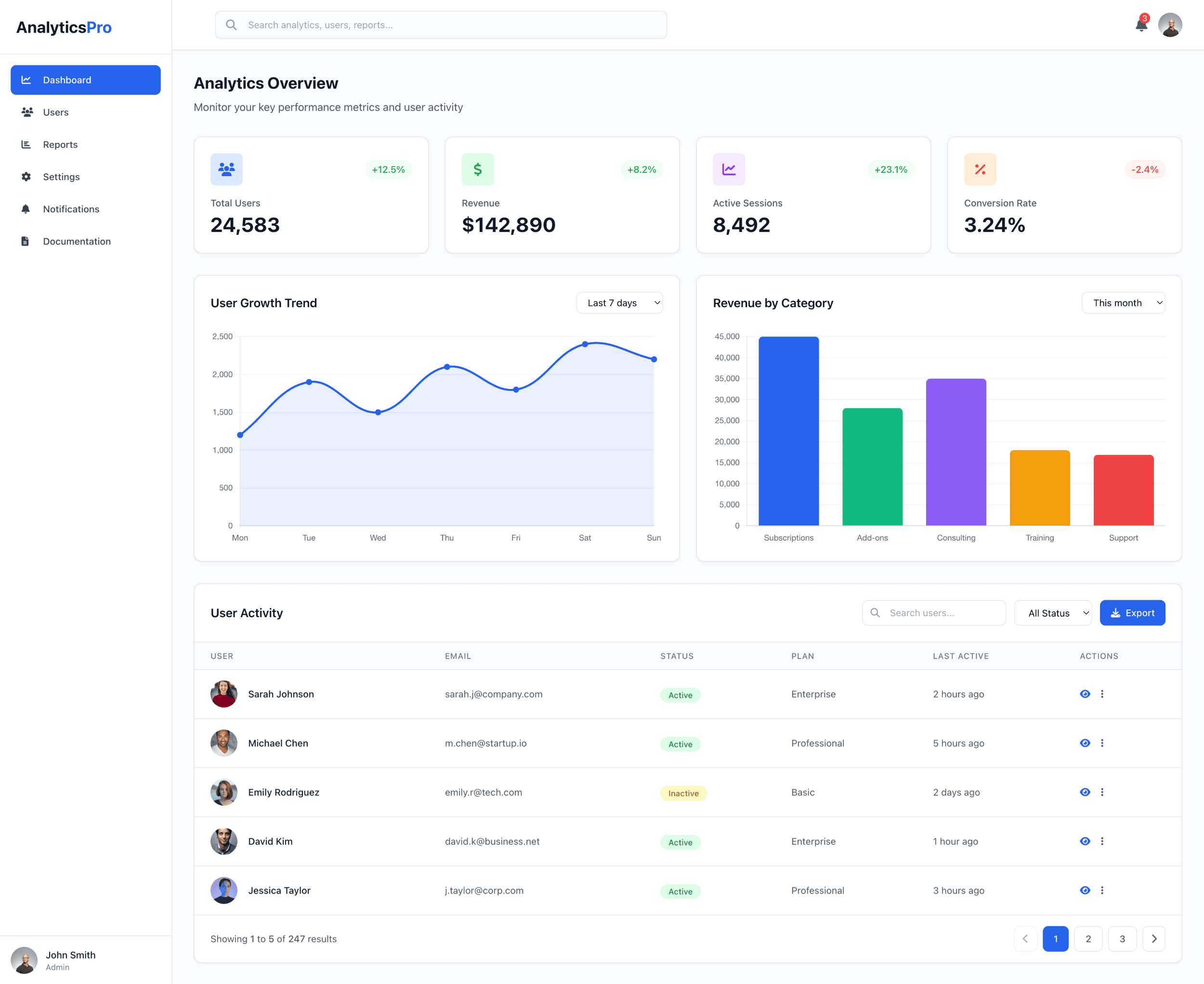
Strong information hierarchy — KPI cards, charts, and table are clearly structured and easy to scan.
Enterprise-grade visual polish — Clean typography, subtle shadows, and consistent spacing match a professional B2B SaaS standard.
KPI card styling consistency — Iconography and spacing vary slightly across cards; could be tighter for a more uniform look.
User table density — Table rows feel somewhat spacious; reducing vertical padding could improve data-per-scroll efficiency.
Uizard
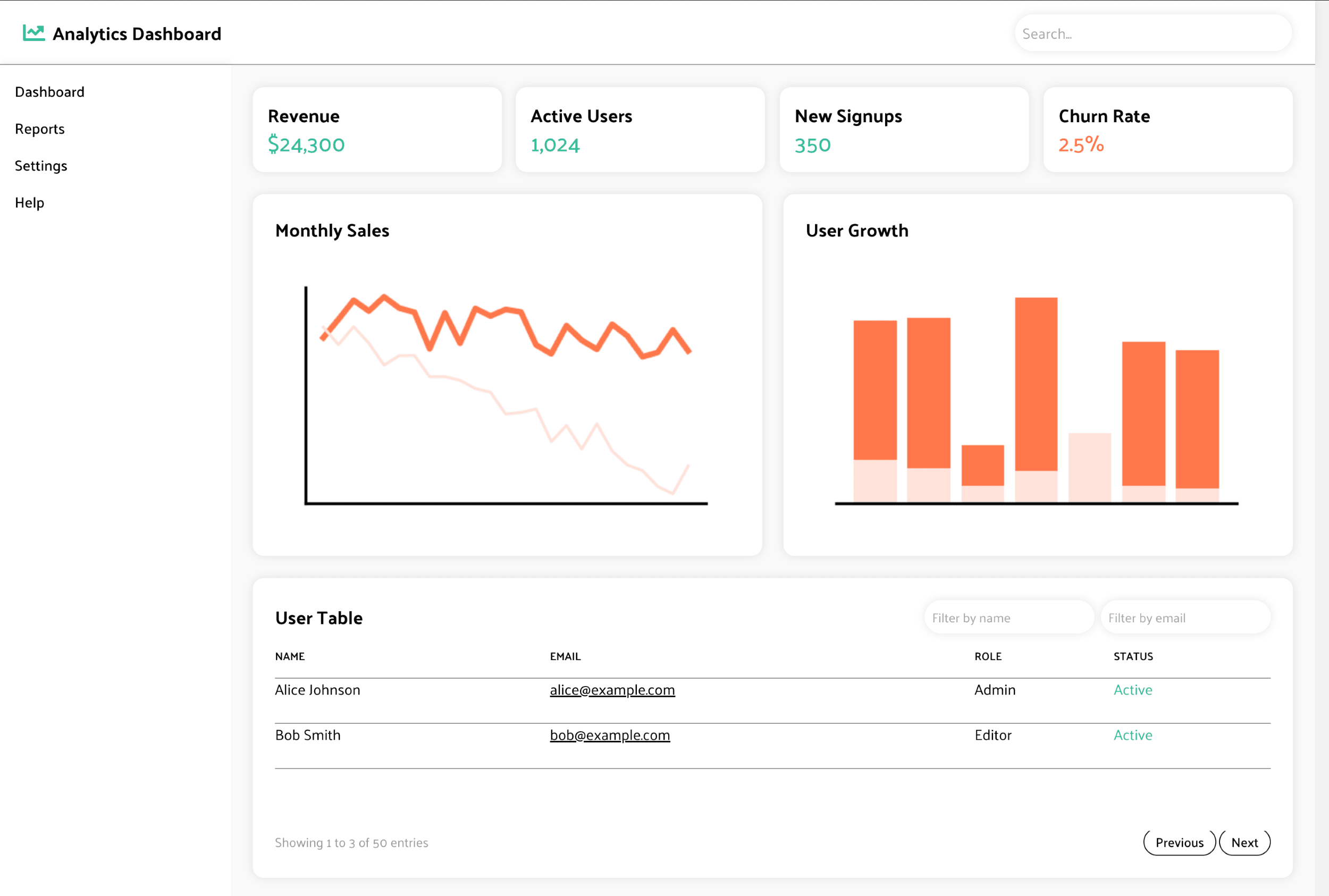
Meets the prompt requirements — All requested components (sidebar, KPIs, charts, table, pagination) are present and functional.
Simple, minimal UI — Light theme and soft color palette give a clean and approachable SaaS feel.
Visual hierarchy is weaker — KPI cards, charts, and table appear similar in weight, reducing emphasis on key insights.
Enterprise finishing touches — Typography, spacing, and shadows feel flatter and less refined compared to enterprise-grade expectations.
Create a mobile finance app showing filled transaction list, and a 5-icon bottom tab bar. Use a clean, modern iOS style with smooth spacing and clear hierarchy.Create a mobile finance app showing empty state, filled transaction list, transaction details modal, and a 5-icon bottom tab bar. Use a clean, modern iOS style with smooth spacing and clear hierarchy.
UXMagic

Strong visual hierarchy — Balance card, filters, and transaction list are clearly separated with excellent spacing and contrast.
Polished iOS aesthetic — Rounded cards, soft shadows, and clean typography match modern iOS finance app patterns.
Missing required screens — Only the filled transaction list is shown; empty state and transaction details modal are not present per prompt.
Bottom tab bar emphasis — Tabs are present but the selected state glow feels slightly heavy compared to native iOS minimalism.
Uizard
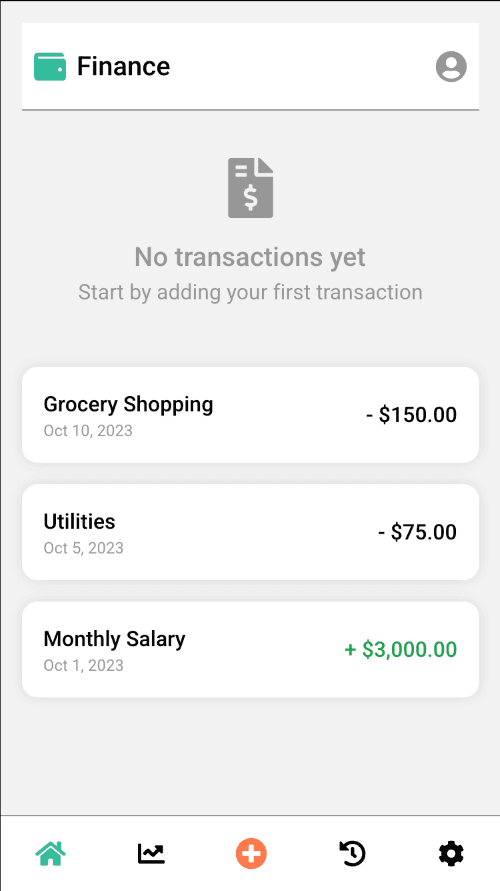
Includes both empty and filled views — Covers more prompt requirements, showing an empty state and transaction list.
Clear and readable layout — Simple spacing, legible typography, and straightforward hierarchy make the UI easy to parse.
Not aligned with modern iOS visual style — Colors, iconography, spacing, and card shapes lean more Android/Material than iOS.
Incomplete feature set — No transaction details modal provided, and the bottom tab bar icons lack visual refinement expected in iOS apps.

UXMagic
UXMagic is an AI design copilot built for professionals who need to move from idea → wireframe → visual design → production-ready output in minutes. It supports prompts, sketches, screenshots, URLs, and Figma as input, making it one of the most flexible AI design tools on the market. Its Agentic AI automates complex visual tasks like style-guide application, layout cleanup, and multi-screen consistency.

Uizard
Uizard is an AI prototyping tool designed for fast iteration and accessible design creation. It’s well known for uizard autodesigner, which generates layouts from short prompts, and uizard screenshot tools that convert low-quality screenshots into editable mockups. Uizard is ideal for quick wireframes, early concepts, and lightweight UX exploration — especially for non-designers.
Feature Comparison
| Feature | UXMagic | Uizard |
|---|---|---|
| Prompt to UI | Generates structured, multi-section pages ready for handoff | AutoDesigner creates simple prototype screens |
| Screenshot to UI | Full image → editable UI transformation | Supports uizard to screenshot edit for concept recreation |
| URL to UI | Clones real websites into editable UI for competitor analysis | Not available |
| Export Options | Figma, React, HTML, multi-platform roadmap | Image, prototype preview, limited structured export |
| Design System Support | Style Guide application + token consistency | Auto-generated themes with limited global control |
| Figma Plugin | Built-in plugin to push/pull designs | No native Figma plugin |
| Real-Time Preview | Multi-device previews + code preview | Prototype viewer with basic interactions |
| AI Intelligence Level | Agentic AI for multi-step design ops | Fast-generation AI for basic prototypes |
UXMagic
Pricing Comparison

Free – $0
30 free credits 5 Projects Up to 5 screens 1 Figma export UI design Wireframe mode Sectional editing
Premium – $17.5/month
480 credits 20 Projects Up to 80 screens 80 Figma exports Export code UI Design Wireframe Flows Screenshot to UI Sketch to UI Text Editing & upload images Sectional Editing
Ultimate – $35/month
4801500 credits Unlimited Projects Up to 250 screens 250 Figma exports Import Figma components/Design systems Clone a site Export code UI Design Wireframe Flows Screenshot to UI Sketch to UI Text Editing & upload images Sectional Editing

Free – $0
Unlimited free viewers /commenters 3 AI generations per month AI engine: Autodesigner 1.5 2 projects 10 free templates
Pro – $12/month
Unlimited free viewers/commenters 500 AI generations per month AI engine: Autodesigner 2.0 Developer handoff React CSS up to 100 projects Private projects Access to all templates
Business – $39/month
Everything from Pro 5, 000 AI generations per month Faster AI generation Custom brand kit Unlimited projects Priority support
Enterprise – Custom
Everything from Business Unlimited AI generations Unlimited teams Design system setup AI data SLA Custom billing Whiteglove onboarding support
Final Verdict
Both tools excel in different areas, but the right choice depends on how far your workflow needs to go.
Uizard is great for fast mockups, but UXMagic is the tool you use when the design actually needs to go live. For teams that build real products, UXMagic simply goes further.
Uizard is for lightweight prototyping. It shines when the goal is quick experimentation, pitch-ready visuals, or turning rough ideas into simple prototype screens — especially for users without design training. Uizard’s AutoDesigner and screenshot tools are fast, fun, and effective for early exploration.
UXMagic is for serious product work. If you need rapid concepting, multiple input methods, clean design exports, and production-ready front-end outputs, UXMagic is the more complete workflow engine. It’s ideal for designers, developers, and product teams who want to collapse ideation and implementation into a single AI-driven process.
got questions?we have answers.
UXMagic vs Uizard: UXMagic produces production-ready structures and exports, while Uizard focuses on lightweight prototypes.
Yes — UXMagic converts screenshots into editable UI, often with higher fidelity and better structure.
Non-designers may find Uizard easier for quick prototypes, but UXMagic’s prompt-based interface is equally accessible.
Uizard’s system-level consistency is limited; UXMagic’s style-guided automation is more suitable for professional teams.
Both support prompts, but UXMagic handles sketches, URLs, and complex layouts more robustly.
UXMagic converts a screenshot into a fully structured, editable UI - real layers, components, and spacing you can restyle, not just an image trace. Compared to Uizard's screenshot-to-design conversion, UXMagic's output more closely preserves the original layout's fidelity while remaining editable, and exports directly to Figma or production React/HTML code.
Uizard can turn a screenshot into a rough prototype quickly, but Figma has no native screenshot-to-design conversion, so it requires manual rebuilding. UXMagic sits between the two: it converts a screenshot into a structured, editable design as fast as Uizard, but with output clean enough to hand off in Figma the way a manually-built Figma file would be.
Checkout our Features



Related comparisons
Weighing up more than one tool? Here is how UXMagic compares against the closest alternatives.