
TL;DR
An AI to Figma workflow is useful only when text, vectors, layers, components, and layout behavior remain editable. We recommend treating every conversion as a structured draft: inspect the output, restore responsive logic, map elements to the design system, and test realistic states before handoff. Visual similarity matters, but predictable editing and resizing matter more.
What does AI to Figma actually mean?
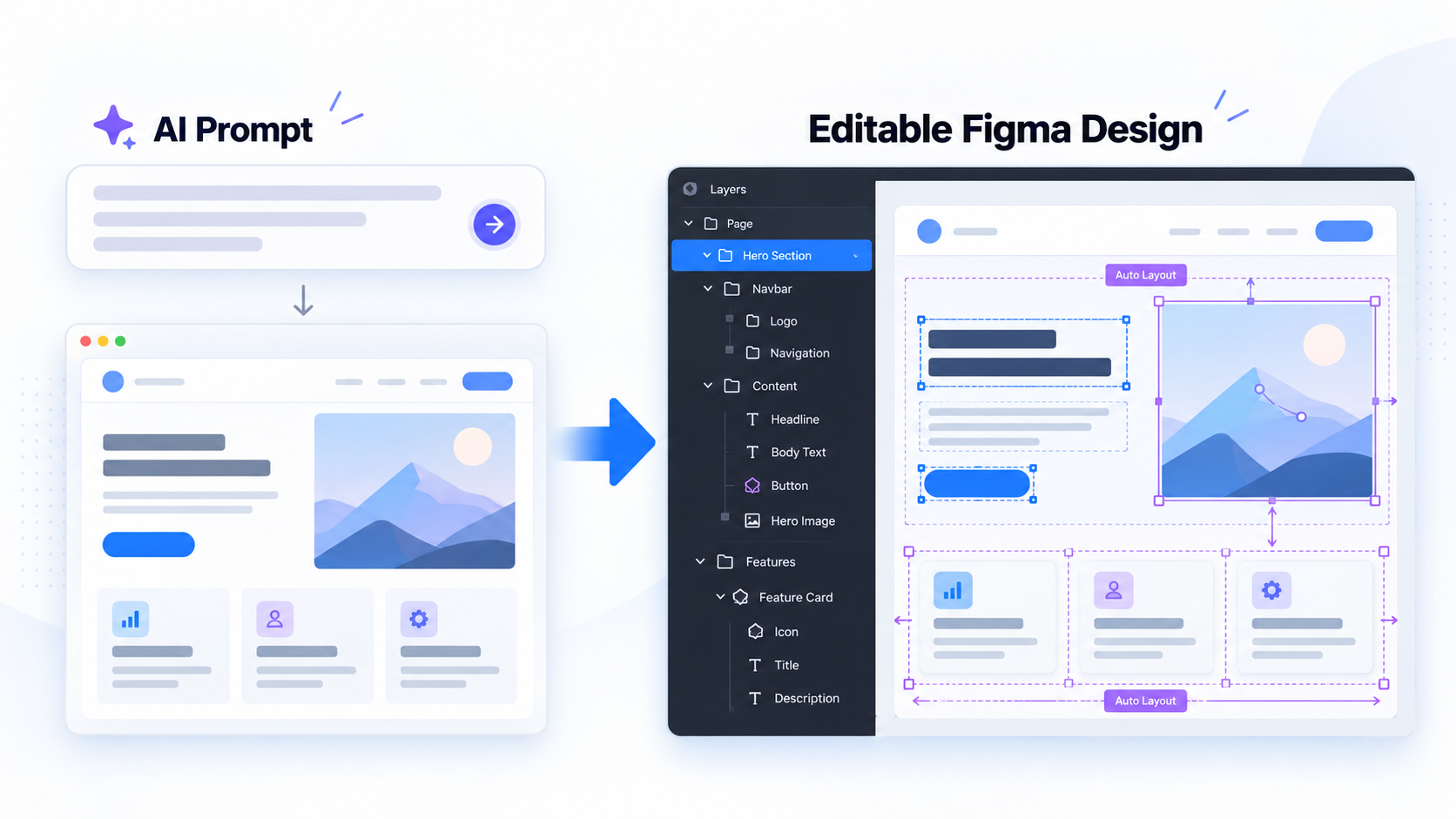 AI to Figma means moving an AI-generated interface into Figma for editing, review, prototyping, and handoff. A usable result contains live text, selectable vectors, logical frames, stable layer order, and elements that resize without breaking.
A flattened screenshot is not an editable design. Neither is a canvas filled with unnamed fragments and no recoverable layout logic.
We judge quality by two questions:
- Can designers understand and change the structure?
- Does the interface respond predictably when content or frame dimensions change?
AI-generated UI versus an Adobe Illustrator .AI file
“AI” can mean artificial intelligence or the Adobe Illustrator .ai format. These require different workflows.
AI-generated UI often starts with a prompt, screenshot, or generated web interface. The aim is to create or recover an editable product design.
An Illustrator file already contains artwork. Importing it requires translating vectors, text, groups, masks, and effects into properties Figma supports. Figma does not natively open .ai or .eps files, so teams need a dedicated Illustrator importer or converter.
Converter, plugin, generator, and agent—what changes?
These labels describe different roles:
- A generator creates UI from instructions or references.
- A converter translates an existing visual into editable objects.
- A plugin runs a workflow inside Figma.
- An agent performs a sequence of connected design actions.
Figma presents its AI workflows as tools for generation, editing, exploration, and production tasks. Whatever the delivery method, we inspect the result for live text, logical groups, reusable patterns, and reliable layout behavior.
How to move an AI-generated UI into Figma with UXMagic
Our recommended process is generate or upload, transfer, inspect, refine, and hand off. The AI UI generator for Figma-ready designs can turn a prompt into an interface draft. For an existing screenshot or generated visual, use an image-to-UI workflow to recover editable elements.
Conversion starts the design process; it does not certify the result.
- Generate or upload the interface
Begin with a clear prompt, reference image, or existing screen. Define:
- Major interface regions
- Content hierarchy and primary task
- Repeated patterns
- Empty, loading, error, and success states
- Target viewport and responsive expectations
Our guide to an AI design assistant for shippable UI explains why system and state requirements belong in the initial brief.
- Move the result into Figma as editable layers
Confirm that text, icons, cards, fields, and backgrounds can be selected independently. Keep the reference image beside the editable frame for comparison, but do not treat it as implementation.
Inspect one example of each important pattern before cleaning the whole file. If key fields, cards, or rows are rasterized or heavily fragmented, rebuilding may be faster.
- Review and refine before sharing
Inspect the layers, restore layout behavior, and replace generated patterns with approved components. Test content variation, interaction states, and responsive behavior.
Before handoff, remove screenshots, duplicate layers, unused masks, temporary annotations, and off-canvas debris. The file should read like a designed system rather than a record of the conversion.
How to verify that the Figma output is genuinely editable
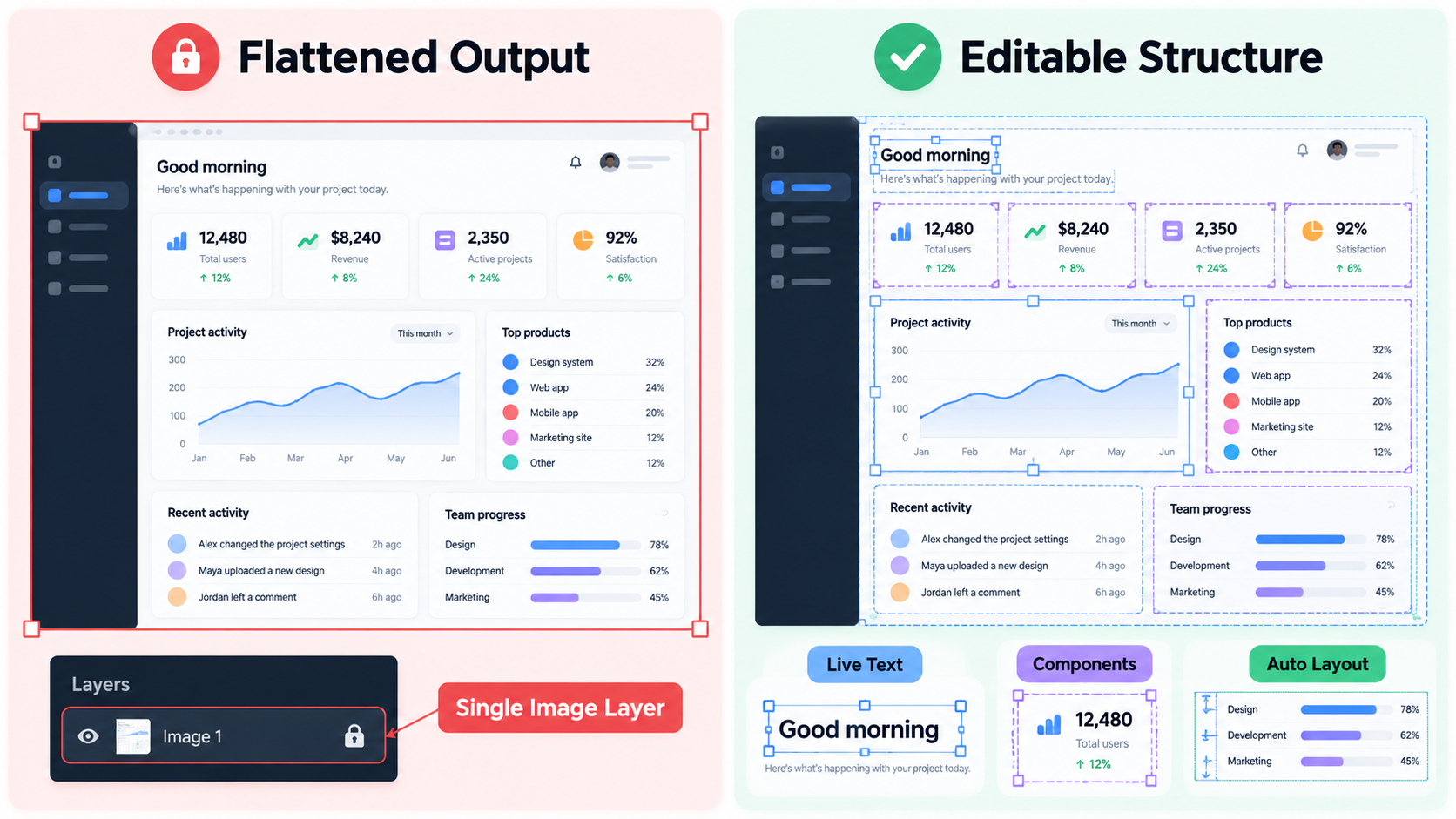 A zoomed-out preview can conceal rasterized content, broken nesting, fragmented vectors, and absolute positioning. We recommend testing representative elements before investing in cleanup.
Check text, vectors, fills, effects, and icons
Edit a heading and replace it with longer copy. Confirm that it remains live text, uses an available font, and reflows correctly.
Change a fill, border, shadow, gradient, radius, and icon independently. An icon built from excessive fragments may technically be editable while remaining impractical. Editability should reduce work, not make every pixel selectable.
Audit naming, nesting, grouping, and z-order
Look for meaningful names and logical frames. Repeated cards, navigation items, and rows should have consistent structures.
Remove duplicates, hidden remnants, unnecessary masks, and misplaced objects. Layer order should reflect the visible interface, allowing designers to find labels and controls without reverse-engineering nested groups.
Run a quick stress test
Resize the parent frame, lengthen a heading, reorder a card, swap an icon, and change a shared color. Overlaps, detached labels, clipping, and repeated manual repositioning indicate missing layout logic.
Restore Auto Layout, constraints, and responsive behavior
A screenshot records one arrangement of pixels, not the rules that produced it. We make spacing, alignment, wrapping, and resizing explicit.
Rebuild layout logic with Auto Layout
Apply Auto Layout to navigation, cards, forms, table controls, and button groups. Work from the page shell inward, replacing arbitrary coordinates with intentional padding, gaps, alignment, and content-driven sizing.
A high-fidelity wireframe testing process helps validate structure before visual polish hides layout problems.
Set constraints and resizing rules
Define which elements fill available space, hug content, remain fixed, or pin to an edge. Avoid applying “fill container” everywhere; labels, controls, and data regions behave differently.
Validate breakpoints and content fit
Decide when grids collapse, actions stack, tables scroll, and sidebars compact or disappear. Test long labels, translated strings, large values, errors, missing images, and deeper navigation.
For mobile work, our mobile wireframe design system supports testing screens as a connected flow.
Map generated UI to your components and design tokens
Generated UI should not become a parallel design system. We reconcile buttons, colors, spacing, typography, and radii with approved standards before review.
Replace repeated patterns with components and variants
Replace repeated buttons, fields, cards, badges, navigation items, and rows with library components. Use variants for meaningful differences such as size, status, emphasis, and interaction state.
The Figma component library supports this component-first cleanup. We still preserve intentional one-off elements when forced reuse would make the system harder to understand.
Map colors, type, spacing, and radii to tokens
Map generated values to semantic styles or variables, including surfaces, text, borders, actions, statuses, spacing, and corner radii. If no suitable token exists, flag the decision rather than silently expanding the system.
Two AI-to-Figma walkthroughs that test real product complexity
Marketing screens rarely expose structural weaknesses. Product interfaces test repeated data, changing states, dense content, and responsive behavior.
SaaS analytics dashboard
Generate navigation, metric cards, charts, filters, a table, and an empty state. Our dashboard design decision framework helps define which information should drive action.
After conversion, edit labels and values, inspect chart construction, reorder table content, test sidebar constraints, resize the frame, and replace repeated patterns with system components.
Mobile checkout flow
Generate contact details, payment fields, an order summary, validation messages, and a primary action. Include error, disabled, and loading states.
Replace generated fields with approved variants, insert long content, and test a compact viewport. Error messages should expand cleanly, summaries should wrap, and state changes should preserve the layout.
Common AI-to-Figma conversion failures—and how to fix them
Our goal is not to preserve every converted layer. It is to create the cleanest viable design file.
Rasterized text and font substitution
Replace rasterized copy with live text. If the original font is unavailable, use an approved type style. Recheck line breaks, text-box sizing, hierarchy, and spacing with longer content.
Absolute positioning and broken resizing
Reframe related objects, apply Auto Layout, and assign explicit fill, hug, fixed, or constraint behavior. Do not preserve arbitrary coordinates solely to match a screenshot.
Fragmented vectors, gradients, masks, and unsupported effects
Simplify or redraw malformed icons and decorative vectors. Rebuild important gradients and masks with native Figma properties. Rasterize only nonessential artwork, and test effects at different sizes.
Convert, regenerate, or rebuild manually?
Choose based on cleanup effort, structural complexity, reuse, fidelity, and available source material. If repairing the conversion takes more work than rebuilding, conversion has not helped.
Convert when the draft preserves useful structure
Convert when live text, coherent groups, repeated patterns, and major regions survive. This works well when a draft can be mapped quickly to the design system.
Regenerate when the concept is right but the composition is wrong
Regenerate when hierarchy, density, platform conventions, or required states are missing. Improve the prompt before repairing individual layers.
Rebuild when structural repair exceeds the value of conversion
Rebuild when content is flattened, fixed positioning is pervasive, vectors are malformed, or the visual language conflicts with the design system. Compare total cleanup effort with a component-first rebuild.
Is the converted design production-ready? Run this review first
We treat converted output as draft material until it passes system, state, accessibility, content, and responsive reviews. The broader set of AI UI/UX design features can accelerate iteration, but human review still determines readiness.
Review hierarchy, accessibility, and interaction states
Check contrast, focus visibility, reading order, labels, touch targets, and semantic hierarchy. Add hover, focus, pressed, selected, disabled, loading, success, error, empty, and partial-data states where relevant.
Test real content and edge cases
Use long names, large values, missing images, empty datasets, errors, and translated strings. Test representative viewport sizes rather than postponing failures until development.
Confirm handoff quality
Approve handoff only when layers are understandable, components and variables are mapped, responsive behavior is predictable, required states exist, interaction logic is documented, and conversion debris is gone.
AI-to-Figma tool capabilities
Importing AI into Figma
AI-generated UI can be transferred or reconstructed as editable objects. Adobe Illustrator .ai files require a dedicated workflow for translating their vectors, text, masks, groups, and effects.
Creating Figma designs with AI
AI can accelerate editable drafts, but it does not guarantee production readiness. We still validate structure, components, tokens, accessibility, states, and responsive behavior.
Working with AI-to-Figma plugins
Plugins may generate interfaces, import assets, or convert screenshots inside Figma. We judge them by output quality rather than installation method.
Using ChatGPT in the workflow
ChatGPT can help define requirements, copy, structure, component logic, edge cases, and prompts. Producing a maintainable Figma file still requires suitable design tooling and review.
Assessing production readiness
Production-ready output needs clean layers, system mapping, responsive tests, realistic content, accessible states, and documentation that other designers and developers can understand.
Turn generated UI into a Figma file your team can extend
Start with UXMagic to describe, design & ship an editable UI draft, then apply our structural, system, responsive, and handoff checks before calling it complete.