
Engineering teams don't reject design handoffs because they lack appreciation for visual polish - they reject them because inspecting poorly structured canvases forces them to write manual CSS overrides. According to Figma's own State of the Designer research, 92% of designers and 91% of developers say the handoff process still has real room for improvement. Real handoff speed happens when generated UI flows already match production component architecture before a developer ever opens an inspector.
You already understand flexbox and auto-layout mechanics, tokenized design systems, component-driven React/Tailwind architectures, and per-seat SaaS pricing structures. This isn't a beginner's guide to what handoff is. It's a tactical evaluation of whether dedicated portals like Zeplin still earn their keep alongside Figma Dev Mode, and whether Model Context Protocol integrations are making static delivery surfaces obsolete.
The Handoff Pipeline, Visually
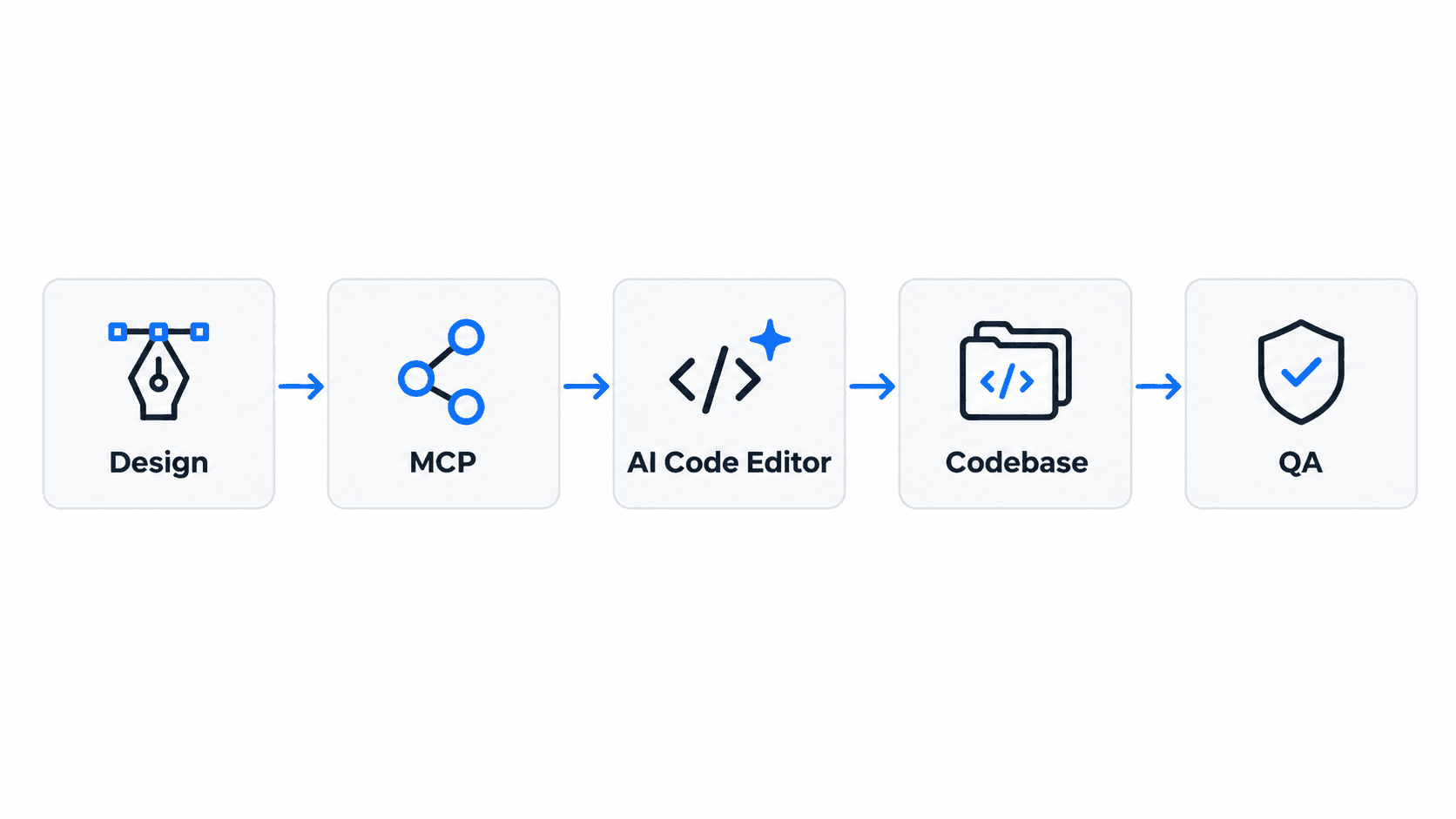
That's the modern pipeline in one line. Every tool covered in this guide sits at one specific point in that chain knowing which point a tool actually addresses is the difference between building a real stack and just buying five overlapping subscriptions.
Traditional vs. Modern Handoff
| Traditional Handoff | Modern Handoff | |
|---|---|---|
| Deliverable | Static specs (redlines, exported assets) | Structured design data (tokens, components) |
| Developer process | Manual inspection, hand-copied values | AI ingestion via MCP |
| Implementation | Manual recreation of layout logic | Direct component mapping to existing library |
| Quality check | Manual QA against a static reference | Automated visual verification against live builds |
The Death of Static Specs: How Design Handoff Works in 2026
Why Traditional Redlining Struggles With Modern AI Workflows
The traditional design handoff document is largely on its way out, even as many product organizations keep paying to maintain it out of habit. Pushing static visual specs into external inspection portals creates double-handling overhead in an era increasingly shaped by AI code editors and MCP servers. Modern product teams are moving away from handing off static screens, toward generating token-bound, production-ready component flows connected directly to codebase repositories.
The Shift From Inspection to Ingestion
Manual spec redlining - a developer squinting at a frame, copying a hex value, guessing at a padding number is increasingly being replaced rather than refined. Modern handoff relies on AI code editors ingesting tokenized component structures directly via Model Context Protocol (MCP) endpoints, reading variable collections and cross-referencing existing repository components instead of a human transcribing values by hand. UXMagic's own MCP integration fits into this exact shift - connecting generated flows directly into Cursor, Claude Code, or VS Code, so the ingestion step covered throughout this guide starts from a structure built for it, not retrofitted onto it.
MCP vs. Code Connect: What Each Actually Does
These two get conflated constantly, and they solve genuinely different problems:
Model Context Protocol (MCP) is the connection layer - it's how an AI code editor like Cursor or Claude Code actually reads a Figma file at all. Think of it as the pipe: MCP gives the AI agent access to component nodes, layer structure, and variable collections inside a design file, so the editor can "see" the design directly instead of a human describing it.
Figma Code Connect is the mapping layer on top of that pipe - it tells the AI agent which real code component corresponds to a given Figma component. Without Code Connect, an AI agent reading a design via MCP still has to guess whether a button in Figma maps to your component or some other existing element in the codebase. With Code Connect properly maintained, that guess becomes a lookup.
The two work together: MCP is what lets the AI see the design; Code Connect is what tells it how that design maps to code that already exists. Neither one is optional if the goal is clean ingestion - MCP without Code Connect still produces guesswork, just guesswork with better visibility into the source file.
Tool Comparison
| Tool | Pricing | Best For | Figma Support | Code Export | MCP Support | Token Support |
|---|---|---|---|---|---|---|
| Figma Dev Mode + Code Connect | $12–35/seat/month by tier | Figma-native teams with AI editors | Native | Via Code Connect mapping | Yes | Yes, via variables |
| Zeplin | Free (1 project), then paid tiers | Multi-tool, enterprise governance | Import-based | Limited | No | Limited |
| Anima / Locofy | Paid, plugin-based | Direct code generation from frames | Native | Yes (React/HTML) | No | Depends on source structure |
| Sympli | Paid | Mobile-first inspection | Native | Limited | No | Limited |
| OverlayQA | Paid | Post-handoff visual verification | Compares against Figma frames | N/A (verification, not generation) | No | Checks for drift, doesn't generate |
| UXMagic | Free tier + paid plans | Upstream flow generation with built-in structure | Native export, and importable from existing Figma files | Yes (React/Tailwind) | Yes, via native MCP integration | Yes, enforced at generation |
Evaluating the Top Design Handoff Tools for 2026
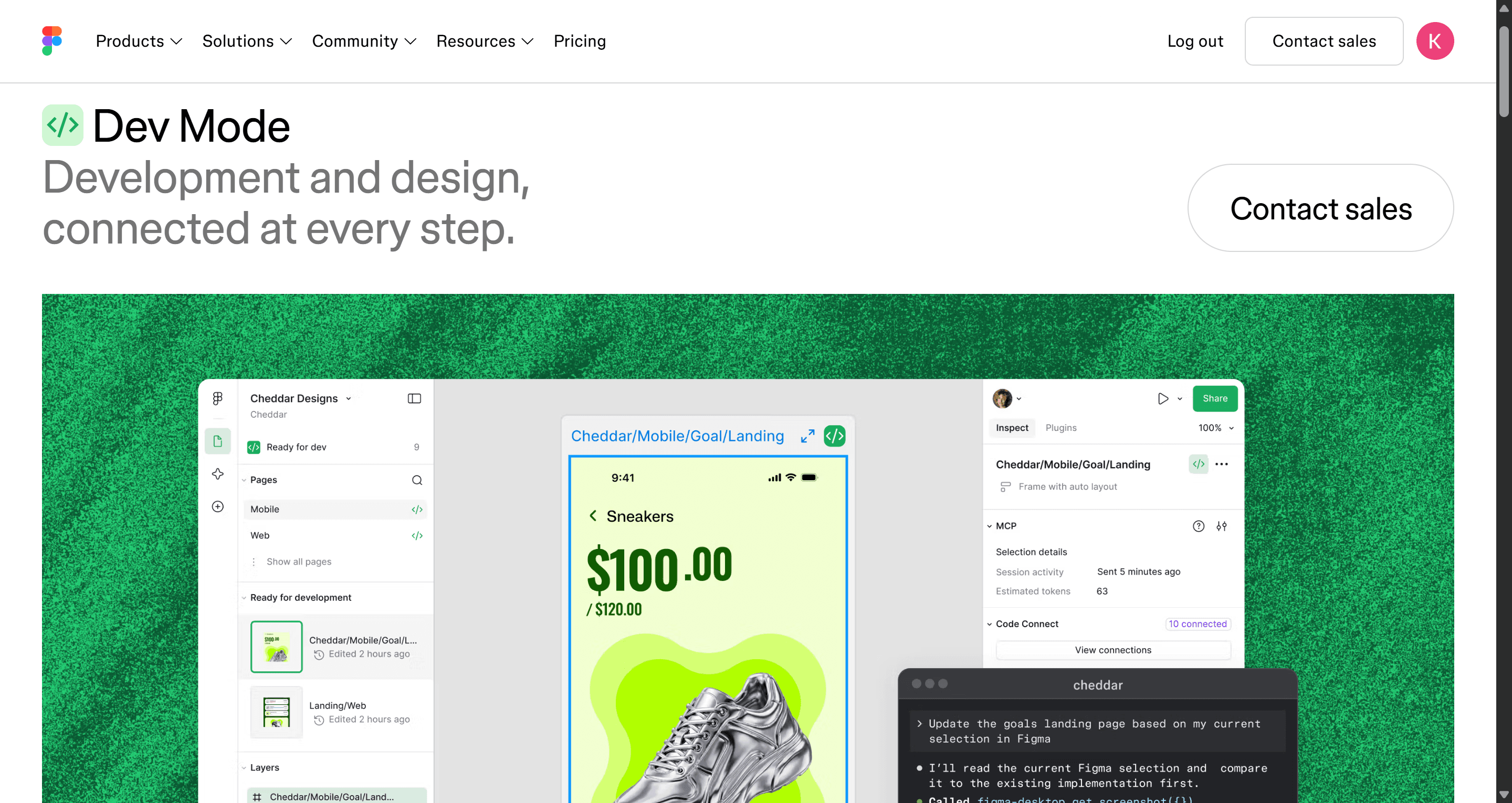
- Figma Dev Mode + Code Connect: The Ecosystem Default
Figma restructured its pricing in 2025 into Full, Dev, and Collab seat types, and Dev Mode pricing is genuinely tiered rather than a single flat rate - worth getting right before budgeting: $12/month per Dev seat on Professional (annual billing, $15/month billed monthly), $25/month on Organization, and $35/month on Enterprise. That $25 figure specifically applies to Organization, not the default tier most smaller teams start on.
Dev Mode tends to be worth its cost mainly when an organization actively maintains mapped design tokens via Code Connect. Without structured variable mapping, Dev Mode largely provides raw CSS inspection - a real but limited value proposition for a non-design-system team paying for the full workflow.
- Zeplin: The Dedicated Delivery Workspace for Multi-Tool Orgs
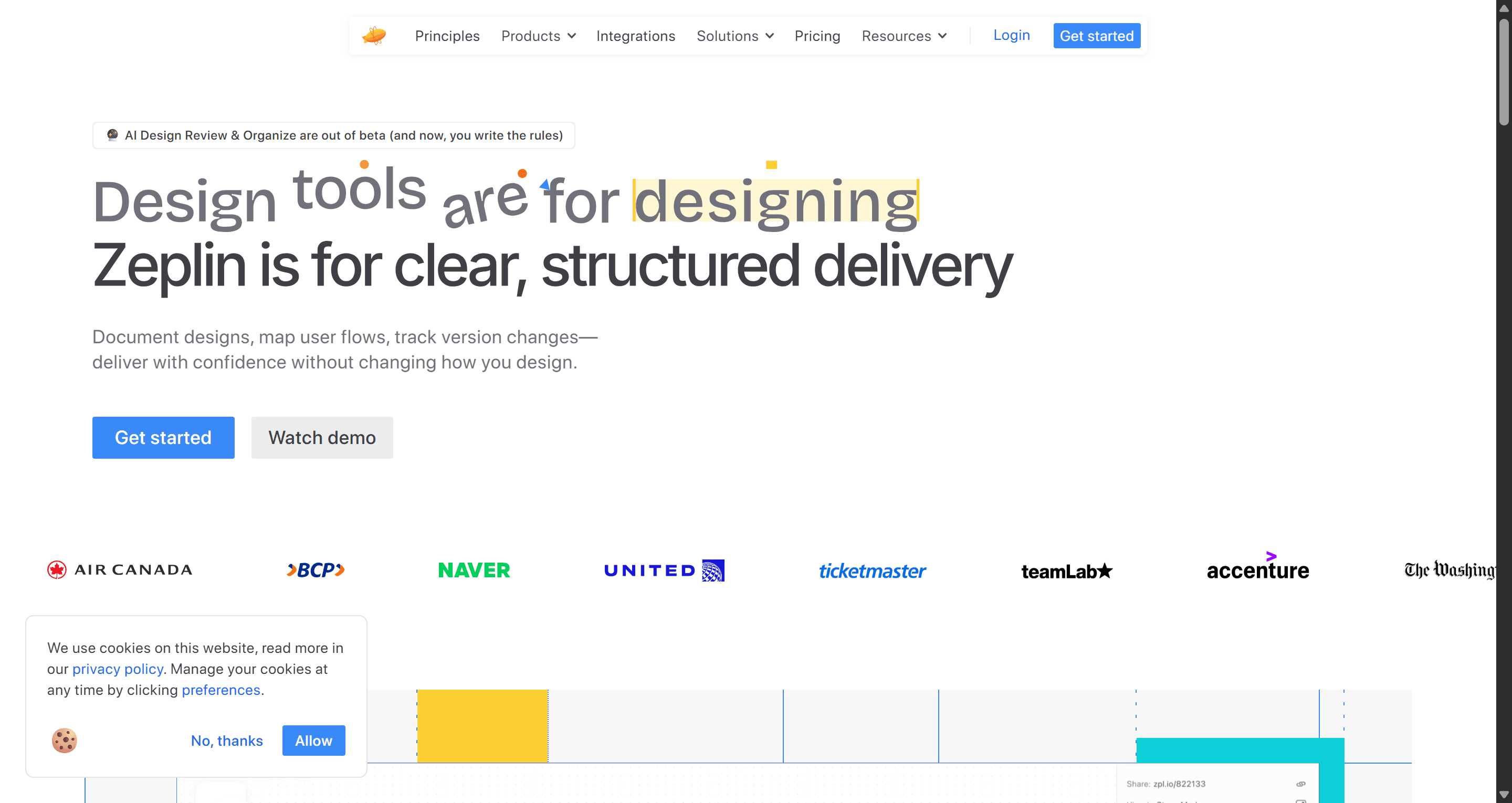
Zeplin remains genuinely relevant for enterprise organizations and multi-tool teams working across Figma, Sketch, and Adobe XD simultaneously. It acts as a locked, immutable delivery surface that prevents developers and external stakeholders from inspecting unapproved work-in-progress frames on a live Figma canvas - a real governance benefit that Figma's own inspect tools don't replicate.
- Anima & Locofy: AI-Powered Direct Code Generation
These plugins generate code directly from Figma frames, but output quality is entirely dependent on the structure they're fed. Frames built with loose, manual element groupings instead of disciplined auto-layout tend to produce a mess of absolute-positioned divs that engineering ends up discarding rather than shipping.
- Sympli: Mobile-First Inspection for iOS and Android
Sympli's niche is mobile-specific inspection - a genuinely useful fit for teams whose primary handoff surface is native iOS or Android rather than responsive web. For teams generating that mobile flow in the first place rather than just inspecting it, UXMagic's mobile app templates start from a mobile-first structure instead of a responsive layout adapted after the fact.
- OverlayQA: Post-Handoff Verification and Token Auditing
Inspection tools don't guarantee implementation fidelity - a clean handoff meeting doesn't mean the live feature actually matches the design. OverlayQA and similar post-handoff verification tools compare staging web pages against Figma frames directly, detecting visual regressions, token drift, and WCAG accessibility violations inside pull request workflows, closing a blind spot most handoff conversations never check.
The Hidden Bottleneck: Why Code-Ready Handoff Starts at Ideation
The Three-Phase Modern Handoff Lifecycle
Modern design-to-code pipelines have shifted from manual spec redlining toward an integrated, three-phase AI translation lifecycle.
Phase 1 - Upstream generation and structural preparation.
The product creator defines interface requirements, layout hierarchies, state variations, and token bindings, using prompt-driven UI generation tools to produce complete auto-layout flows rather than manually drawing static shapes. Standardized token naming and flexbox alignment at this stage prevent structural breakdowns during code ingestion later. Locking that token system once, via UXMagic's Style Guide Generator, is what keeps Phase 1 from quietly reintroducing arbitrary values screen by screen.
Phase 2 - Ingestion and AI code translation.
Developers connect AI code editors like Cursor or Claude Code to the design canvas via official MCP servers. The AI agent inspects component nodes, reads variable collections, and cross-references existing repository components mapped via Figma Code Connect, generating what's best described as code-generated output at this stage - a real, structured starting point, not yet a finished, reviewed deliverable.
Phase 3 - Downstream verification and visual auditing.
The implemented codebase gets checked against original design specs via automated visual regression audits and WCAG accessibility checks against live staging URLs, flagging token drift and missing padding variables directly inside pull request review before code merges, not after a user reports a bug. Passing this phase is closer to handoff-ready: structurally sound and verified against the design, though still pending full engineering review before anyone calls it production-ready.
Here's what breakdown at any single phase looks like on two real teams. A Series B SaaS company building a multi-tenant billing permissions panel inside an existing React, Tailwind, and Storybook codebase: the legacy workflow has a designer create static frames, and developers inspect the canvas, manually copy CSS values, and recreate layout logic - producing non-standard utility classes and unmapped tokens along the way. The modern workflow instead generates the permissions flow with standardized flexbox structures using prompt-based UI tools, and the engineer selects the generated frame in Cursor via the Figma MCP server - Cursor reads the underlying token structure and outputs component-mapped React code in roughly fifteen minutes, still subject to normal code review before merge.
A non-technical founder coordinating remote contract developers on an initial SaaS prototype hits the same gap from a different angle: the legacy path exports visual wireframes to external inspection tools, and contract developers build static HTML/CSS templates that break on mobile due to unmapped responsive properties. Generating production-ready UI flows through UXMagic instead exports clean, structured layout components and design tokens that contract developers integrate directly into the production repo without translation loss.
Solving Auto-Layout Discipline and State Completeness Upstream
Standard AI design tools frequently produce flat, unformatted layers that fail the moment they hit a developer inspection tool downstream - a structural problem no amount of post-handoff verification can fix, since the source structure was never sound to begin with. Generating UI flows with native auto-layout structures and semantic variables from the start helps MCP servers convert designs into production code cleanly, rather than emitting the absolute-positioned mess loose element groupings produce.
Handoff breakdowns also frequently happen because designers omit edge cases, loading states, and error handlers, leaving engineering to improvise them right before code freeze. UXMagic's Flow Mode resolves this by generating comprehensive functional flows including loading, error, and edge-case states from a single prompt, reducing the missing-spec back-and-forth that otherwise eats real sprint time. For teams building out the underlying prompt discipline this depends on, structuring effective design prompts covers the groundwork that makes an upstream generation actually clean enough for downstream MCP ingestion.
Limitations of AI-Assisted Handoff
Worth being direct about what this pipeline doesn't solve, regardless of how clean the upstream generation is:
- Complex business logic - an AI agent can map a button to a component; it can't know your specific pricing rules, permission hierarchies, or conditional workflows without explicit specification.
- Accessibility - generated components can follow visual patterns without automatically guaranteeing ARIA correctness, keyboard navigation, or screen reader behavior; this still needs a dedicated review pass. This accessibility heuristics checklist covers what that review pass should actually include.
- Responsive edge cases - real content (long strings, localized text, unusual data volumes) can break layouts in ways a clean generated frame with placeholder content won't reveal.
- Existing component compatibility - Code Connect mappings only work as well as they're maintained; a renamed prop or refactored component silently breaks the mapping until someone notices.
- Security requirements - authentication flows, data handling, and permission boundaries are engineering decisions no design-to-code pipeline is positioned to make.
None of this makes the modern pipeline pointless - it just means "code-generated" and "production-ready" are different claims, and treating them as the same is where real bugs slip through.
How to Choose the Right Handoff Stack for Your Team Size
A quick decision framework based on the tools covered above:
- Small team, Figma-native, using an AI code editor - Figma Dev Mode on Professional plus Code Connect, paired with an MCP-connected editor like Cursor.
- Enterprise, multi-tool environment - Zeplin as a locked delivery surface on top of whatever design tools different teams use.
- Team relying on direct code generation from frames - Anima or Locofy, but only once upstream auto-layout discipline is actually enforced.
- Any team that's been burned by silent drift before - add a post-handoff verification layer like OverlayQA regardless of the rest of the stack.
When Each Tool Might Not Be the Right Choice
- Skip Dev Mode if your team doesn't have the bandwidth to maintain Code Connect mappings - you'll be paying for raw inspection you could get more cheaply elsewhere.
- Skip Zeplin if you're a single-tool Figma shop with a small, trusted engineering team - the governance layer solves a problem you may not have.
- Skip direct code-gen plugins (Anima/Locofy) if your design files aren't yet built with disciplined auto-layout - fix the source structure first, or the tool just automates producing bad code faster.
- Don't rely on post-handoff verification alone - tools like OverlayQA catch drift after the fact; they don't replace getting the upstream structure right in the first place.