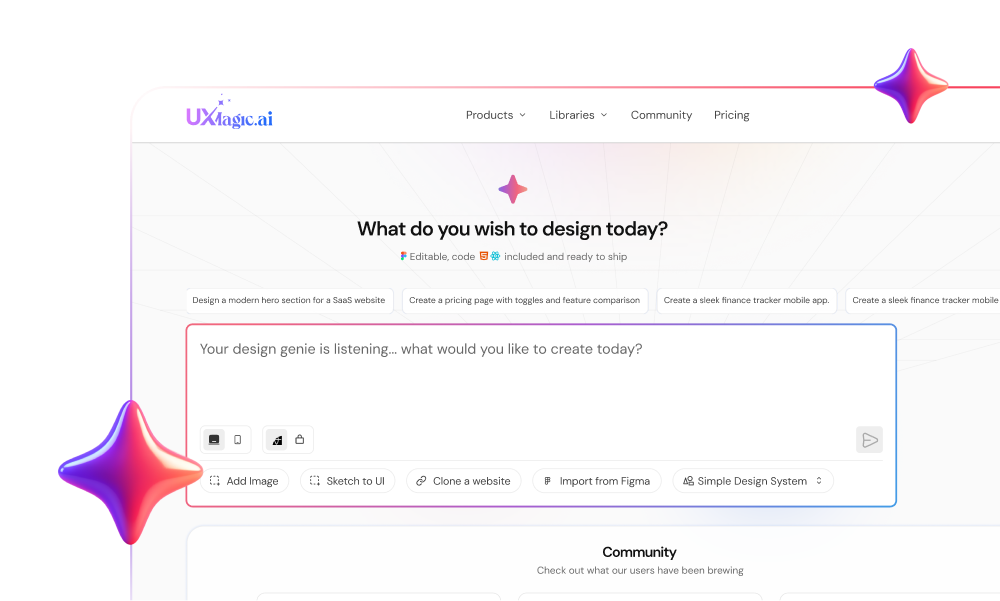
Spending three hours refactoring broken Auto Layout containers and manually renaming layers from a supposed "automatic UI generator" is not workflow efficiency; it's technical debt. Most Figma AI plugins yield visual artboards that collapse the moment real product data or enterprise design tokens get applied. This review evaluates which plugins actually hold up under production use, and which ones just generate a convincing screenshot.
A note on methodology before diving in: this review is built from publicly documented plugin capabilities, verified third-party reviews, and vendor-published specs not a controlled side-by-side test run by us on identical prompts. Where a specific claim (a failure mode, a cleanup estimate) comes from an illustrative scenario rather than hands-on testing, that's flagged explicitly rather than presented as measured data.
You already understand canvas navigation, Auto Layout properties, variant states, and standard plugin installation. This isn't a beginner's guide to what a Figma plugin is. It's a structural evaluation of output hygiene - Auto Layout integrity, layer naming, component reusability, and multi-screen state continuity.
Quick Comparison
| Tool | Best For | Multi-Screen | Auto Layout | Design Tokens | Figma Export | Code Export |
|---|---|---|---|---|---|---|
| UXMagic | Full product flows from a PRD | Yes, native | Yes, native | Enforced | Native | React/HTML |
| UX Pilot | In-Figma wireframing, layout review | Limited, drift-prone | Partial | Inconsistent across screens | Native | HTML-based |
| Builder.io Visual Copilot | Design-to-code translation | Depends on source frames | Requires clean input | Depends on source | Native | React/Vue/HTML |
| Anima | Figma-to-code handoff | Depends on source frames | Requires clean input | Depends on source | Native | React/Vue/HTML |
| Relume | Marketing site sitemaps | Sitemap-level, not app UI | Yes, for its category | N/A | Webflow, Figma | N/A |
| WireGen | Fast low-fidelity exploration | Single-screen focus | Basic | N/A | Native | N/A |
| Figma First Draft (native) | Single-screen ideation | No | Partial | No | Native | N/A |
| Magician | Copy and asset generation | N/A (not a UI generator) | N/A | N/A | N/A | N/A |
The State of AI UI Generation in 2026: Flow Architecture vs. Single-Screen Drafting
Why Single-Screen AI Generation Creates Technical Debt
Generating isolated interface artboards creates visual fragments rather than functional digital products. Modern software design operates as a state machine where screens, modals, and input feedback loops are intrinsically linked. Plugins that evaluate performance based on single-prompt screen generation force designers to spend more time stitching screens together afterward than building from scratch would have taken.
Nielsen Norman Group's own research on early-stage design iteration is directly relevant here: teams iterating through low-fidelity concepts in early stages complete up to 5x more concept explorations before converging on a solution than teams that jump straight to high fidelity. That's the real argument for treating AI-generated first drafts as fast exploration tools - rapid, cheap iteration genuinely does produce better outcomes than committing early to one direction.
Native Figma AI vs. Third-Party Plugin Ecosystems
Figma's native AI suite including features like First Draft, layer renaming, and text translation - streamlines localized micro-tasks well. These native utilities struggle to process complex Product Requirement Documents (PRDs) or output deep, multi-step application structures. Relying exclusively on native canvas capabilities limits generation to basic component presets, not full product flows.
Critical Breakdown: The Best Figma AI Plugins for UI Generation
- UX Pilot: Wireframing and Design Review Capabilities
UX Pilot is a genuinely capable in-Figma generation tool with a useful predictive-heatmap feature for layout feedback. Its documented weak spot is consistency across multi-screen output - independently verified reviews describe style drift between generated screens and inconsistent design system usage, which matters more the longer a generated flow gets.
- Builder.io Visual Copilot: Design-to-Code Translation
Design-to-code engines like Builder.io Visual Copilot depend entirely on the underlying frame architecture they're given. Passing AI-generated screens with broken Auto Layout constraints or absolute positioning into a code translation tool yields unmaintainable DOM trees and CSS bloat - production-ready code export requires governed canvas hierarchy at the point of generation, not fixed after the fact during export.
- Anima: Figma-to-Code Handoff
Anima operates in the same category as Builder.io - a genuinely useful code translation layer, with output quality gated by the same dependency: clean, structured source frames in, clean code out; messy source frames in, messy code out regardless of how capable the translation engine itself is.
- WireGen & Relume: Low-Fidelity Layout Exploration
WireGen and Relume occupy a genuinely useful niche for fast, low-fidelity structural exploration - good for early concept sketching, not built for production-ready multi-screen output. Relume in particular is purpose-built for marketing site sitemaps and structure, a different job than application UI generation entirely.
- Magician & Asset Utilities: Microcopy and Visual Sourcing
Search results frequently categorize vector search tools, stock photo injectors, and background removal scripts alongside structural layout engines that conflation obscures real evaluation. Tools like Magician are genuinely useful micro-assistants for copy refactoring and asset generation, but they're not generative interface engines and shouldn't be evaluated as if they were.
Anatomical Analysis of AI Output Failures in Figma
Broken Auto Layout Rules and Unnamed Layer Bloat
Generating a visually polished artboard with broken canvas structure underneath - zero Auto Layout, absolute positioning on every element, dozens of unnamed frames requiring hours of refactoring is a widely reported complaint across generative Figma plugins in independent reviews and user forums. It's the actual determinant of whether a "10-minute generation" saves any real time once cleanup is factored in.
Visual and Token Drift Across Multi-Screen Journeys
Figma's native First Draft tool handles single screens reasonably well - generating a four-step onboarding journey with it, or with most third-party plugins, commonly results in later screens drifting from earlier ones in typography, spacing, and button styling. Generic AI plugins also frequently ignore existing design system tokens entirely, forcing manual re-skinning of every generated component before it's usable in a real product.

Here's an illustrative scenario showing what that failure pattern looks like in practice: not a controlled test we ran, but a representative example based on how this category of tool commonly behaves. Manually designing a four-step SaaS onboarding flow - Account Registration, Team Workspace Setup, Role-Based Access Assignment, Billing Integration traditionally requires 8 to 12 hours of layout assembly and Auto Layout configuration. Using a generic single-screen AI plugin for the same flow can generate an initial screen well, but subsequent screens introducing spacing errors and un-grouped elements can require several hours of manual cleanup - real time saved in principle, but meaningfully less than a "10-minute generation" headline implies, because the tool treats each prompt as an isolated event rather than part of a connected flow.
A second illustrative scenario shows the same failure differently. Designers frequently skip secondary UI states - empty data tables, validation errors, modal confirmations under deadline pressure. Prompting a generic plugin for those states typically yields duplicate primary screens with modified text strings rather than genuinely different structural variations, because the AI isn't modifying container structure based on functional application state logic.
Best Plugin by Use Case
- Best for wireframing - WireGen or Figma's native First Draft, for fast, rough exploration
- Best for existing Figma files - UX Pilot, for in-canvas generation without leaving the file
- Best for multi-screen flows - UXMagic, for connected, token-consistent output across an entire journey
- Best for design-to-code - Builder.io Visual Copilot or Anima, provided the source frames are already clean
- Best for marketing websites - Relume, for sitemap and structure generation specifically
Qualitative Scoring Overview
This is a qualitative comparison based on publicly documented capabilities and independently verified reviews not a numeric benchmark from controlled testing on our end. Treat it as a directional summary, not a precise scorecard.
| Tool | UI Quality | Structural Integrity | Auto Layout | Multi-Screen Consistency | Ease of Use | Production Readiness |
|---|---|---|---|---|---|---|
| UXMagic | Strong | Strong | Strong | Strong | Moderate | Strong |
| UX Pilot | Strong | Moderate | Moderate | Weak (documented drift) | Strong | Moderate |
| Builder.io Visual Copilot | Depends on input | Depends on input | Depends on input | N/A | Moderate | Strong (with clean input) |
| Relume | Strong (for sitemaps) | Strong (for its category) | Strong | N/A (different scope) | Strong | Strong (marketing sites only) |
| Figma First Draft | Moderate | Weak | Weak | N/A (single-screen) | Strong | Weak |
Production-Ready Workflow: Translating PRDs into UI Flows
Step 1: Contextual Prompt Structuring from Feature Specs
Converting a written PRD into structural wireframes represents a genuine time sink in traditional design environments - product managers and designers need to define user stories, functional specs, and key application paths clearly before generation starts, since a vague prompt produces vague, disconnected output regardless of which tool receives it.
Step 2: Executing Multi-Screen Generation with Unified Tokens
When single-screen generators like Figma's First Draft force designers to manually assemble connected paths afterward, the alternative worth understanding is native flow generation - ingesting a full PRD to generate connected multi-screen UI flows while preserving visual hierarchy, typography scales, and token consistency across every frame, closing the drift gap covered above at generation time rather than as a cleanup pass.
Step 3: Design System Integration and Handoff Engineering
The maintenance overhead of fixing poorly structured AI exports - repairing absolute positioning, unnamed layers, broken padding is where most of the "time saved" from a fast generation quietly disappears. UXMagic's output uses native Auto Layout constraints, letting designers hand off clean components directly to engineering without the structural refactoring pass that eats the time savings on most other generative plugins.
UXMagic: The Figma Plugin Built for Multi-Screen Flows
Most of the tools covered above work as separate destinations - you leave Figma, generate something, then bring it back and clean it up. UXMagic's own Figma plugin works the other way: it lives inside Figma directly, turning prompts, screenshots, sketches, URLs, PRDs, and existing design systems into editable UI without leaving the canvas.
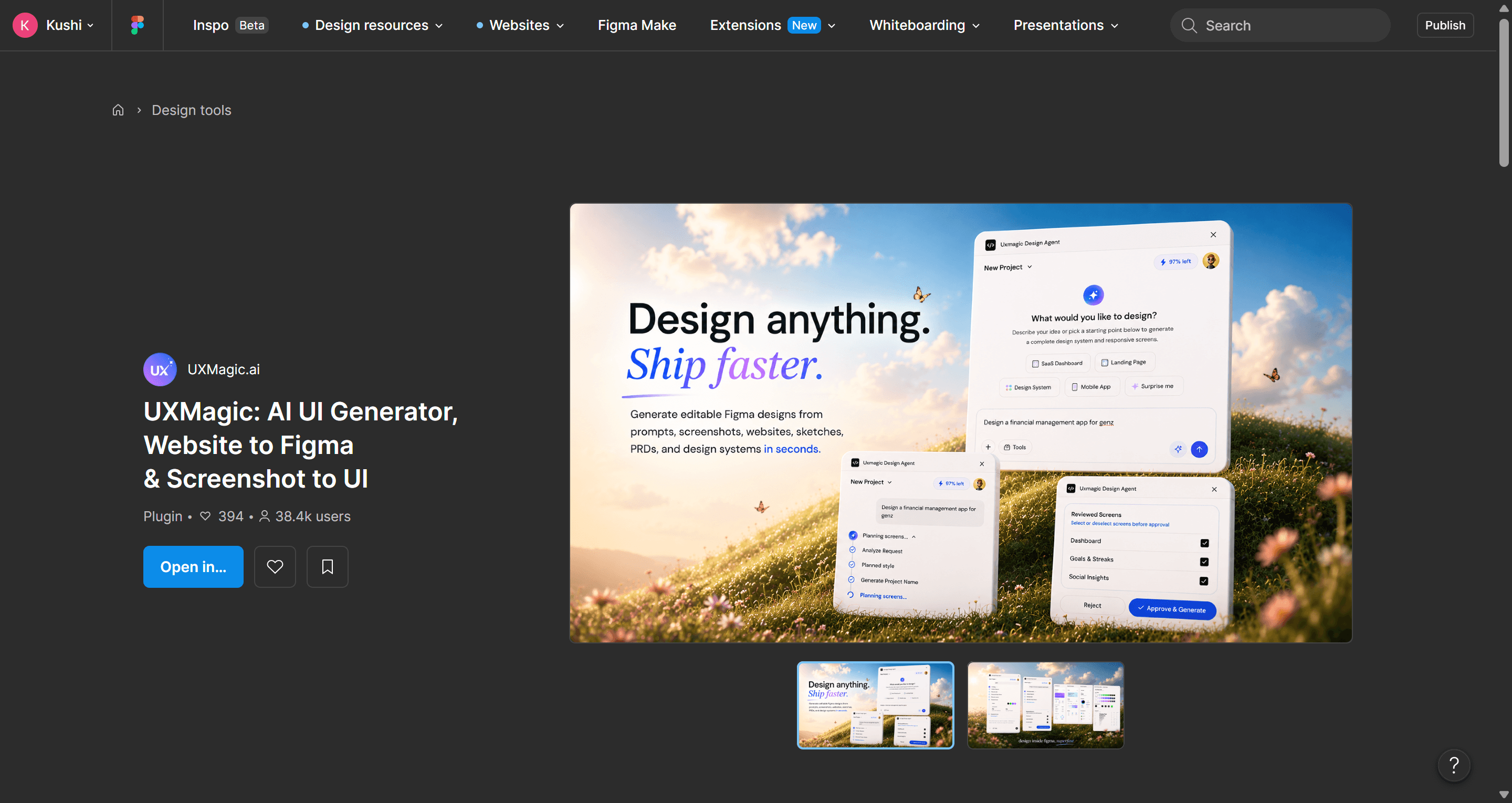
What that plugin listing actually documents, worth stating plainly rather than paraphrasing loosely: it converts screenshots and hand-drawn sketches into ready-to-use UI screens, clones entire websites via URL into editable components directly in Figma, and generates both high-fidelity production screens and low-fidelity early wireframes - all with responsive Auto Layout applied automatically, not bolted on after the fact. That's the direct fix for the "broken Auto Layout" failure mode covered throughout this review: components ship editable and Figma-native from the first generation, ready for prototyping or export rather than requiring a structural rebuild before they're usable.
For teams that want the same multi-screen flow generation but starting from outside Figma - describing a full product concept in the web app rather than working screen-by-screen inside a Figma file - that's the complementary path: generate the connected flow first, then bring it into Figma already structured, rather than assembling it piece by piece inside the canvas.
Generate Production-Ready Figma Flows
Generate connected, token-consistent multi-screen flows from your PRD with structured layouts that are ready for refinement, not hours of Auto Layout cleanup.