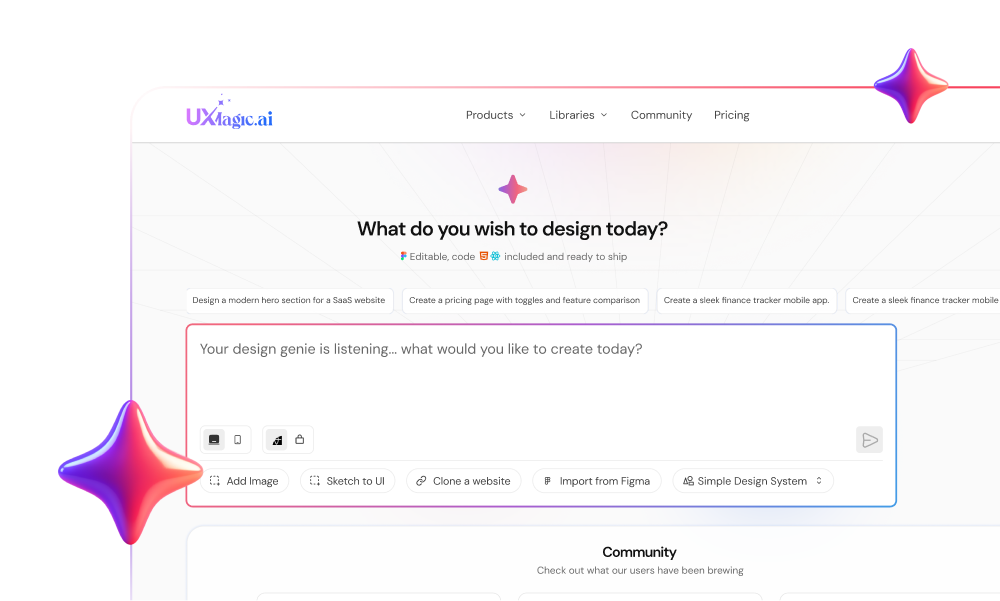
Spending three days wrestling with Figma auto-layout just to pitch a basic feature concept destroys product velocity. Visily promises to convert plain text into clean wireframes in minutes, and for quick, low-stakes concepts, it genuinely delivers. Here's an honest breakdown of what it does well, where it breaks down in real sprints, and the real credit math before you standardize on it.
You already understand wireframes, vector components, auto-layout parameters, and interaction flows. This isn't a design-basics primer. It's the workflow mechanics - credit consumption economics, component control, export fidelity that determine whether Visily fits your actual use case.
Pros & Cons
Pros:
- Genuinely fast text-to-wireframe generation, useful for early concept communication
- Accepts four input types - text, screenshots, sketches, diagrams more flexible than most competitors
- Cheaper entry point than Figma Professional ($11/editor/month vs. $16/month)
- Free tier is usable enough for a short solo evaluation before committing budget
Cons:
- Minor edits can trigger full-screen regeneration, independently documented by multiple reviewers
- Variable credit costs (up to 90 credits for Deep Design) can drain a monthly quota fast during active iteration
- Figma exports often arrive with broken auto-layout and unorganized layers requiring manual rebuilding
- Code export capped at roughly 10 screens per export, a real constraint past a small flow
What Is Visily?
Visily is an AI-powered wireframing and UI design tool built specifically for non-designers - product managers, founders, and cross-functional teams who need to visualize an idea without opening Figma or hiring a designer. It converts four input types - text descriptions, screenshots, hand-drawn sketches, and diagrams into editable wireframes on a drag-and-drop canvas, with the option to move between low-fidelity and high-fidelity output.
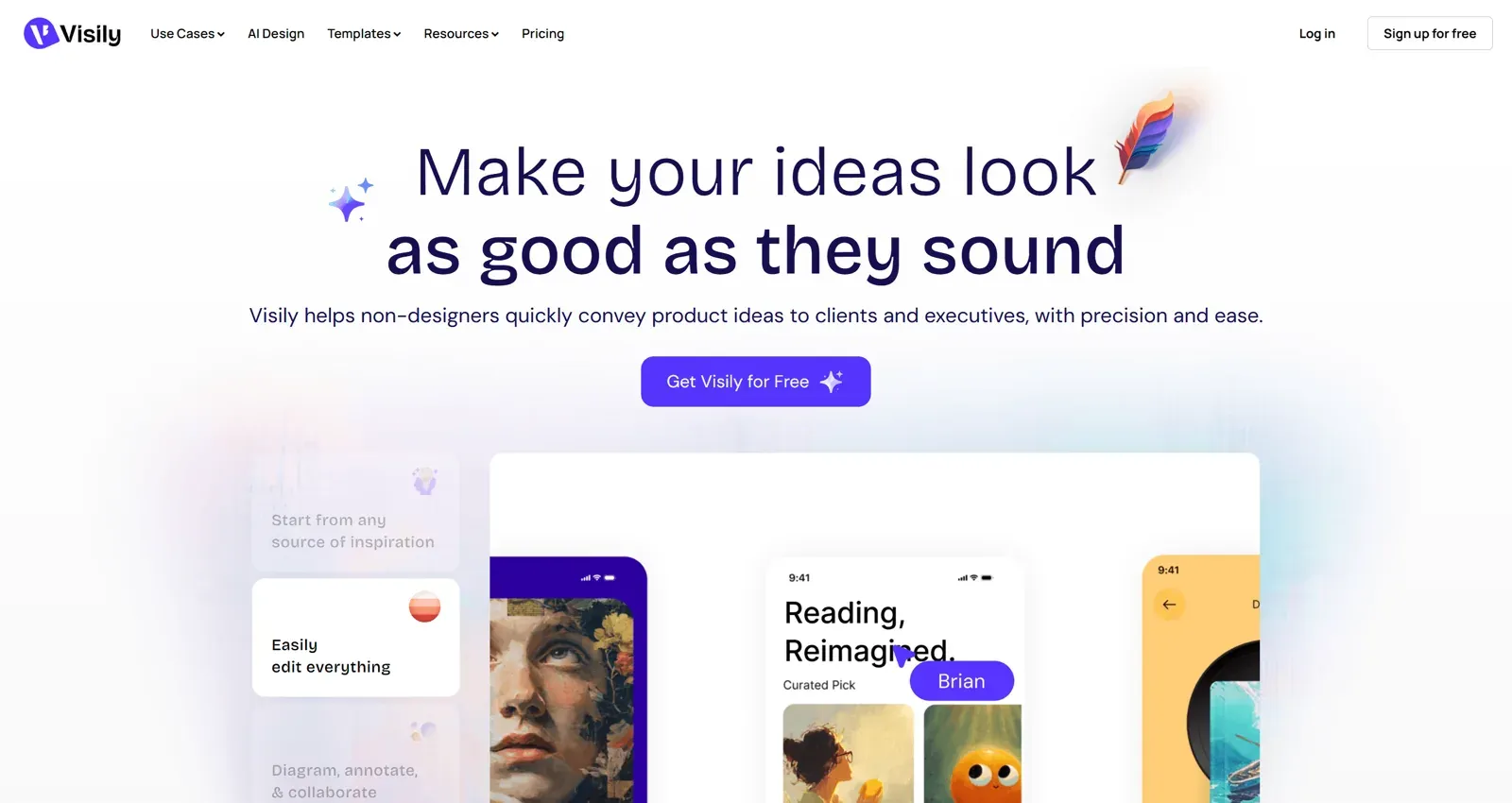
The platform runs on a credit-based system across three tiers (Starter, Pro, Business), and supports export to Figma or code on paid plans. It's positioned squarely at the ideation and communication phase of product design, not as a replacement for a full design system or a production-ready development pipeline.
Search Intent & Target Use Cases: Who Is Visily Actually For?
Non-Technical Founders vs. Product Managers: Different Bottlenecks
Visily attracts two distinct cohorts with different actual problems. Non-technical founders need rapid visual artifacts for early-stage validation - something to show investors, not something engineering builds from directly. Product managers need to communicate feature concepts to engineering without wrestling with a complex design tool they were never trained on.
The Figma Friction Point: Why Teams Seek Alternatives
Both groups arrive at Visily for the same underlying reason: Figma's learning curve and setup overhead feel disproportionate to the task of communicating a basic concept. That's a legitimate pain point - worth checking, though, whether Visily actually resolves it or defers the Figma work to a messier later stage.
Core Features Evaluated: From Text-to-UI to Screenshot Conversions
Text-to-UI and Multi-Screen Wireframing Mechanics
Visily accepts text descriptions, screenshots, hand-drawn sketches, and diagrams, converting each into an editable canvas element. That input flexibility is genuinely useful - most competitors in this category only accept one or two input types.
Screenshot-to-Design: Speed vs. Vector Layer Quality
Converting external screenshots or hand-drawn sketches into editable wireframes is often highlighted as a standout capability, and the speed is real. Parsing a flat image into a digital canvas frequently produces unorganized layers and detached styling tokens, though - when these converted frames move from raw image vectors to digital wireframes, the resulting structure often lacks the semantic organization a design systems lead actually needs. UXMagic's own screenshot conversion handles this input type the same way it handles text or sketches - feeding into the same Flow Mode pipeline rather than a separate, lower-fidelity conversion path.
AI Design Instructions and Theme Customization
Low-fidelity wireframing introduces genuinely redundant work in a modern workflow. Toggling between low-fidelity wireframes and high-fidelity mockups sounds flexible, but maintaining two separate representations means validating UX logic twice - once at each fidelity level instead of once against something production-ready.
Visily Pricing & Credit Breakdown (2026 Edition)
Starter vs. Pro vs. Business: Hidden Limits to Watch
| Category | Starter | Pro | Business |
|---|---|---|---|
| Price | Free | $11/editor/month (annual) | Custom |
| AI credits | 300/workspace/month | 3,000/editor/month | 10,000+ |
| Boards | 2, capped at 2,500 elements | Unlimited | Unlimited |
| Exports | Watermarked, no Figma | Figma export, no watermark | Figma export, no watermark |
| Deep Design | Available, drains fast | Available | Available |
The Starter plan's 300 monthly credits and 2-board cap are genuinely tight - most teams doing regular work outgrow this within a few weeks, not months.
The Real Cost of Credits: Basic Generation vs. Deep Design Mode
Basic generations consume 5 to 30 credits, while Deep Design processes cost up to 90 credits per screen - three times the burn rate of standard generation, confirmed consistently across independent pricing breakdowns. Variable credit pricing can discourage exploratory design in practice: designers and PMs iterate through trial and error by nature, and taxing each prompt variation makes it tempting to settle for a workable design rather than testing a better one, simply to preserve remaining credits.
Visily Pro's $11/editor/month makes it roughly 31% cheaper than Figma Professional at $16/month, and closely aligned with Uizard Pro at $12/month. The meaningful difference isn't the sticker price - it's that Visily's variable credit model can push real costs higher during an active sprint in a way Uizard's flatter generation limits don't.
Workflow Bottlenecks: Where Visily Breaks Down in Real Sprints
The Regeneration Trap: Why Small Edits Scramble Full Layouts
This is a documented, independently verified pattern, not an isolated complaint. One hands-on review tested this directly: selecting a single screen and prompting a color change on one button caused Visily to regenerate both screens in the project including a second screen that didn't even contain the element being edited. A separate comparison review reported the same failure mode on a different project: asking Visily to add a logo and adjust colors for a legal app regenerated an entirely new landing page and dashboard, with the new version showing text touching screen edges and misaligned elements.
An effective AI design tool should treat components as isolated, editable nodes within a system - this pattern shows what happens when that isolation doesn't exist: a targeted request becomes a full reroll of work that was already approved.
Handoff Friction: Clean Figma Components or Unorganized Vectors?
Free tier exports carry visible watermarks and restrict export capabilities entirely. Pro users can export via .vis files or a dedicated plugin, but the resulting Figma canvas often displays broken auto-layout structures and unorganized vector layers requiring extensive manual rebuilding before development can begin. Code export exists on paid plans too, but caps at roughly 10 screens per export - a real constraint for anything beyond a small flow.
Here's what that looks like on two real projects. An early-stage SaaS founder preparing a seed pitch needs a four-step onboarding flow to demonstrate viability to investors. Generating four separate screens via text prompts produces visibly mismatched choices - screen one uses flat primary buttons, screen three introduces rounded cards and different header spacing. Applying a single theme across all four consumes significant credit quota, and the eventual Figma export arrives as flat files requiring designer remediation before anyone can build from it.
A product manager needing to show engineering a data table with expandable rows, status filters, and bulk action drawers hits a related wall. Prompting the AI to insert custom filter states triggers a full-page layout reset, losing previously customized column headers in the process - the fix for one small state change becomes a rebuild of everything around it.
Who Should Use Visily?
- Non-designers who need a visual artifact fast and don't require production-ready output
- Early-stage founders validating a concept for investors or early user feedback, not shipping code
- PMs creating quick concepts for internal alignment before a formal design pass begins
- Teams focused mainly on wireframing as a communication tool rather than a production pipeline
Who Should Avoid Visily?
- Teams needing production-ready Figma files - the auto-layout and layer organization issues mean real cleanup time regardless of plan tier
- Complex multi-screen products - the regeneration trap gets more costly the more screens and states a project has
- Teams doing frequent AI iterations - variable credit costs compound fast under active, exploratory use
- Teams needing strong component-system consistency - full-screen regeneration on minor edits works directly against maintaining a stable design system
Visily vs. UXMagic: Direct Comparison
| Category | Visily | UXMagic |
|---|---|---|
| Pricing | $11/editor/month, 3,000 credits | Flat entry pricing, no credit rationing anxiety |
| AI generation | Text, screenshot, sketch, diagram input | Text, sketch, screenshot, and live URL input |
| Multi-screen flows | Manual theme alignment across screens | Flow Mode generates connected flows with consistent tokens by default |
| Editing | Minor edits can regenerate entire screens | Targeted component mutation - edits stay isolated to the node changed |
| Figma export | Often requires manual auto-layout cleanup | Structured export intended to preserve layout logic |
| Code export | Capped at ~10 screens per export | No fixed screen cap on export |
The consistency problem is the throughline worth focusing on. Adopting a platform that enforces unified color tokens and component behavior across every screen from the first generation removes the "apply a theme after the fact" step entirely which is the exact gap that caused the mismatched buttons and header spacing in the seed-pitch scenario above. UXMagic's Style Guide Generator is what defines those tokens once, so a founder generating four onboarding screens isn't manually reconciling button styles across each one afterward.
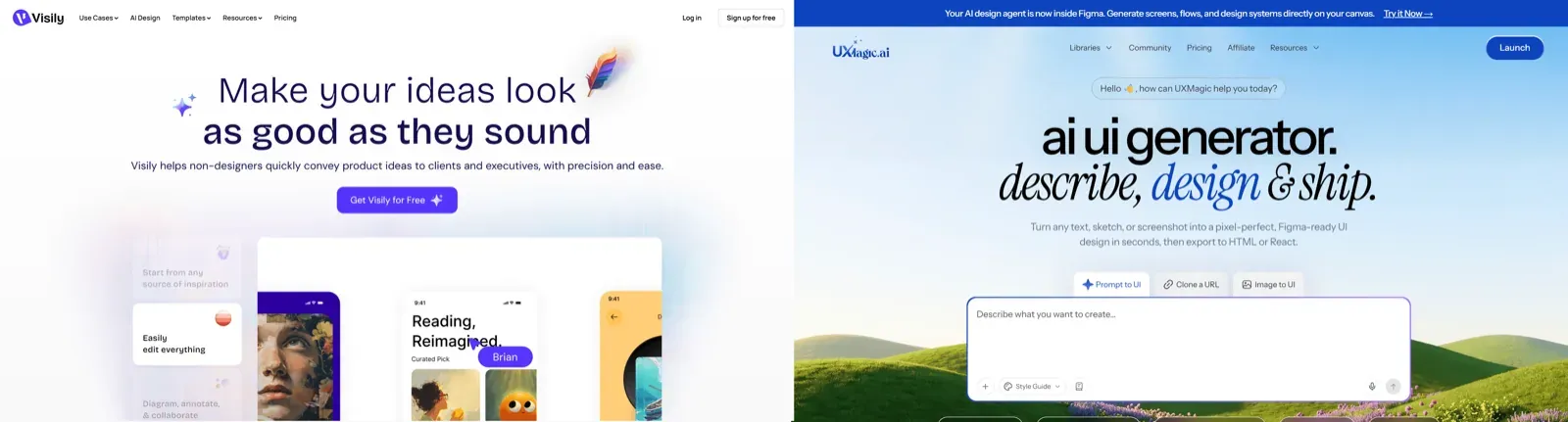
The editing problem gets addressed the same way: targeted component mutation means updating one filter state shouldn't cost the column headers someone already customized elsewhere on the same screen.
For product managers weighing this specifically against Figma's handoff friction, structuring a workflow around multi-screen AI flow generation covers the broader case for skipping the static-wireframe stage entirely, rather than generating something that still needs a full redesign pass in a second tool later. And for founders specifically validating a concept before investor conversations - the exact scenario in the seed-pitch example above - UXMagic's AI MVP Builder is built around producing that kind of testable, presentation-ready flow directly.
Keep Your UI Flow Consistent
Generate connected, multi-screen flows that stay consistent from the first prompt through the final edit, without rebuilding approved layouts.